
If you remember just one thing, make it this: Azure SQL access is split into two separate layers - Azure RBAC for the server resource and SQL permissions for the data. If you mix those up, you can give someone power to manage the server while they still can’t read a single table.
Here’s the short version:
-
I use Azure RBAC for the management plane
- create or delete the server
- change firewall rules
- scale or configure the resource
-
I use SQL permissions for the data plane
SELECTINSERTUPDATEDELETE
-
I treat server-level roles and database roles as different tools
- server roles apply across the logical server
- database roles apply inside one database
-
I keep access tight by using:
- the smallest role that works
- custom roles when built-in ones give too much access
- Microsoft Entra ID groups instead of direct user grants
There are 4 fixed server-level roles in Azure SQL Database:
MS_DatabaseConnector: connect to any current or future databaseMS_DatabaseManager: create databasesMS_DefinitionReader: view metadata across databasesMS_LoginManager: create and manage logins inmaster
One more thing matters: role setup and role membership are not the same. I grant permissions to the role, then add people or groups to that role with T-SQL like CREATE ROLE, ALTER ROLE, and GRANT. That keeps access cleaner and easier to review.
| Access type | What it controls | Common use |
|---|---|---|
| Azure RBAC | Azure SQL resource | Deploy, configure, delete |
| SQL permissions | Data in a database | Read, write, change data |
| Server-level roles | Whole logical server | Connect, create DBs, view metadata |
| Database roles | One database | App, analyst, or team access |
The safest pattern is simple: give the least access possible, assign it to an Entra ID group, and review group membership instead of one-off user grants.
That’s the full model in plain English, and it’s the frame I’d use before assigning any Azure SQL access.
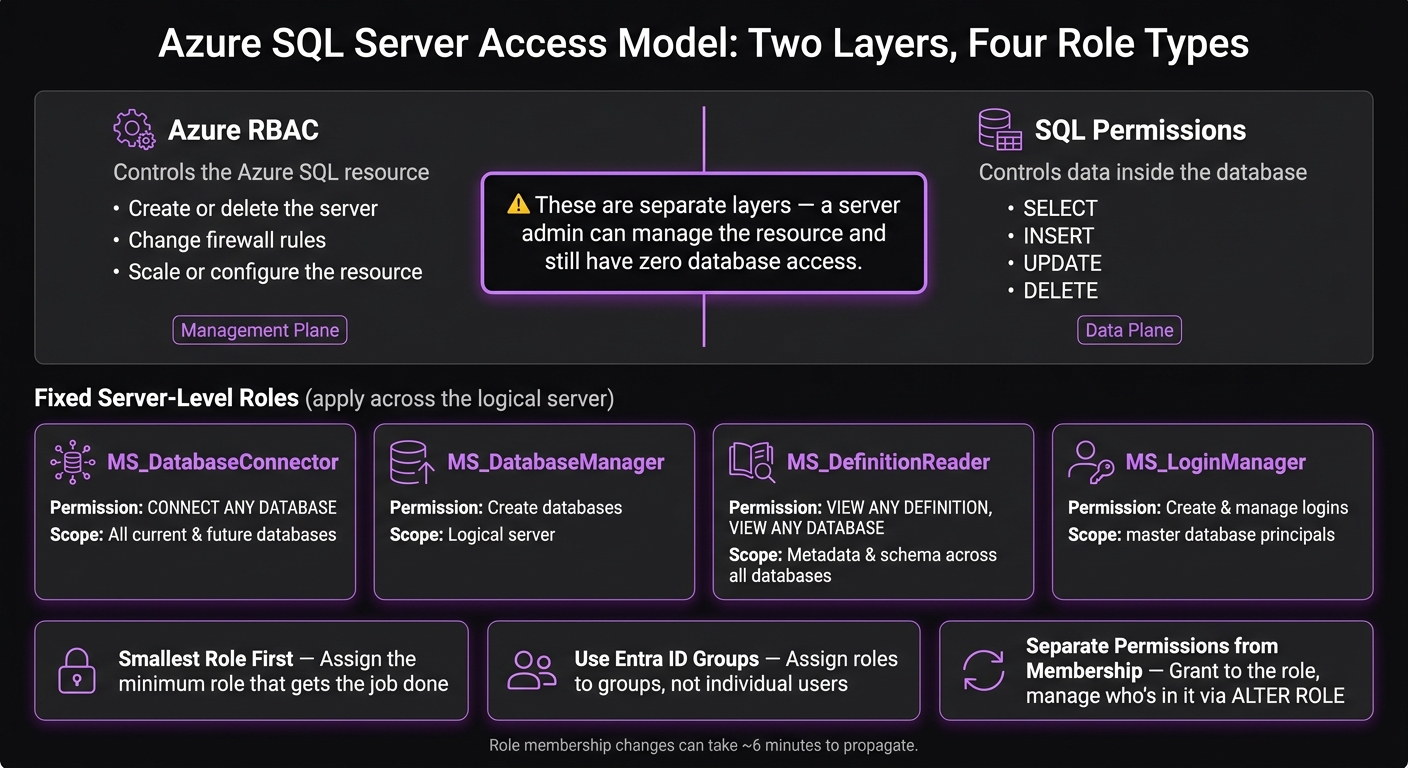
Azure SQL Access Layers: RBAC vs SQL Permissions vs Server & Database Roles
Azure SQL Security Authentication and Authorization by Jes Chapman
sbb-itb-79ce429
Fixed server-level roles in Azure SQL
Azure SQL Database includes four fixed server-level roles in the logical master database. Their permissions apply across the logical server. Once you separate the server layer from the data layer, these are the built-in roles that govern access across the server.
MS_DatabaseConnector and MS_DatabaseManager
MS_DatabaseConnector grants CONNECT ANY DATABASE. That means members can connect to every current and future database on the server without needing a separate user in each database.
MS_DatabaseManager allows members to create databases on the logical server.
MS_DefinitionReader and MS_LoginManager
MS_DefinitionReader grants VIEW ANY DEFINITION and VIEW ANY DATABASE. In plain English, it lets members see metadata across all databases on the server.
MS_LoginManager allows members to create and manage server logins in master.
Here’s a quick side-by-side view of the four roles:
| Role | Server-Level Permission | Scope |
|---|---|---|
| MS_DatabaseConnector | CONNECT ANY DATABASE |
Connection access to all databases |
| MS_DatabaseManager | Create databases | Database administration on the logical server |
| MS_DefinitionReader | VIEW ANY DEFINITION, VIEW ANY DATABASE |
Metadata and schema visibility |
| MS_LoginManager | Create and manage logins | Principals in the master database |
Only the SQL Server admin or the Microsoft Entra admin for the logical server can manage membership in these roles [2].
Which database roles to use
At the database level, the same rule applies: match the role to the task, then stop.
Inside each database, use built-in roles for standard access patterns. When you need a more exact set of permissions, use a custom role instead.
Common fixed database roles
Use built-in roles when they fit the job cleanly. If they don’t, switch to a custom role.
Too much access adds risk. Too little access slows people down or blocks work.
When to create a custom role
Create a custom role when built-in roles don’t go far enough for least privilege.
Custom roles give you tighter control, which helps keep permissions lined up with what the person or team actually needs.
Assign custom roles to Microsoft Entra ID groups, not individual users, so access reviews stay easier to manage.
How role membership and permissions work
After you choose a built-in or custom role, you handle permissions and membership as two separate things.
You grant permissions at the role level, then manage who belongs to that role on its own. That split matters. It keeps the permission set steady even when people join or leave the role.
CREATE ROLE, ALTER ROLE, and GRANT
Three T-SQL statements do most of the heavy lifting:
CREATE ROLEdefines a custom role.ALTER ROLEadds or removes members from that role.GRANTgives permissions to the role itself, not to individual users.
In plain English, the role acts like a container. You put permissions on the container, then add or remove people from it as needed. That way, you don't have to reassign the same permissions every time membership changes.
Who can manage server-role membership
Only principals with explicit server-role management rights can change membership. Those changes can take about six minutes to propagate.
How to apply least privilege in Azure SQL
Least privilege means giving each account ONLY the access it needs. In practice, that means assigning the smallest role that still lets the account do its job. Once you pick the role type, keep membership as tight as possible.
Choose the smallest workable role
Pick the role that fits the task and nothing more. A read-only reporting service doesn’t need write access. An app that only inserts records doesn’t need admin-level permissions. The goal is simple: match the job to the smallest role that works.
Use role-based access to simplify reviews
Least privilege is much easier to manage when access is grouped by role. Instead of checking one-off database grants for each person, you review group membership. When someone joins or leaves a team, you update the group instead of untangling a long list of database permissions, which makes provisioning and deprovisioning simpler [1].
That also makes audits less of a headache. Auditors can review group memberships instead of tracing permissions for every individual user across multiple databases [1].
Key points to remember about Azure SQL roles
Before you assign access, keep three rules in mind.
Azure RBAC and SQL permissions handle different jobs. Azure RBAC applies to the Azure SQL resource itself. SQL permissions apply to the data inside the database. That means a server admin can manage the resource and still have no database access at all. [1]
Scope matters: server roles and database roles solve different access problems. A server role works at the server level, while a database role works inside a database. If a built-in role gives too much access, use a custom role instead. [1]
Assign roles to Microsoft Entra ID groups instead of individuals to make management and auditing easier. [1] Stick with the smallest role that gets the job done, and assign it through an Entra ID group.
FAQs
Do I need both Azure RBAC and SQL permissions?
Yes, in most cases you need both.
Azure RBAC controls the Azure resource itself. That means it decides who can create it, change its settings, or delete it in the Azure portal.
SQL permissions control what happens inside the database. They govern access to data, including tables and views.
Put simply, RBAC manages the control plane, while SQL permissions manage the data plane.
When should I use a custom database role?
Use a custom database role when built-in Azure RBAC roles don't give you the exact access you need to follow the principle of least privilege.
Custom roles let you fine-tune permissions for specific tasks. That way, users and apps get only the data and actions they need - nothing extra. This can lower security risk, limit the impact of a breach, and make compliance easier in sensitive settings like healthcare or financial services.
Why use Entra ID groups instead of user grants?
Using Microsoft Entra ID groups makes access management much simpler. Instead of assigning permissions to each person one by one, you assign them to groups. That cuts admin work and helps keep security rules consistent across your organization.
Handling access at the group level also means fewer manual permission updates. When roles change, it’s easier to adjust group membership than to chase down individual settings. That makes compliance easier to support and helps teams stick to least-privilege access.


