
Automatic tuning in Azure SQL is a feature that optimizes database performance automatically. It monitors workloads, identifies issues like missing indexes or inefficient execution plans, and implements fixes. The process includes testing changes, monitoring their impact, and reverting them if performance worsens. Key features include:
- CREATE INDEX: Automatically creates indexes to improve query performance.
- DROP INDEX: Removes unused indexes to streamline operations.
- FORCE LAST GOOD PLAN: Reverts to the last effective execution plan when performance declines.
This feature reduces manual effort for database tuning, saving time and improving efficiency. It’s particularly useful for production environments, where maintaining consistent performance is critical. To get started, enable Query Store and configure tuning through the Azure Portal, T-SQL, or Azure CLI. Always monitor changes to ensure they align with your performance goals.
Optimizing Your SQL Database Workloads w/ Automatic Tuning on Azure SQL | Data Exposed: MVP Edition
sbb-itb-79ce429
Main Features of Automatic Tuning
Azure SQL's automatic tuning is built around safe experimentation and includes three key features. These features work independently, monitor their impact, and allow for review before making permanent changes.
CREATE INDEX
This feature uses the Query Store to track query performance metrics like CPU time, duration, and logical reads. When it detects a pattern indicating that an index could improve performance, it automatically creates one. Unlike traditional methods, it combines overlapping recommendations into a single, optimized index[3].
In February 2019, Brent Ozar tested this feature on an 8-core Azure SQL Database using the Stack Overflow dataset. After running a heavy workload with SQLQueryStress, the system created three indexes for the Badges, Users, and Votes tables. Notably, it merged multiple missing index recommendations into one optimized index for the Votes table, resulting in significant DTU savings[2]. Brent Ozar remarked:
"Azure managed to merge the first two recommendations together in a way that works successfully! Neither of the DMVs had included all 4 of those fields in a single index, but Azure did"[3].
It’s a good idea to start with monitoring-only mode. Use the Azure Portal to review suggestions for a week or two before enabling automatic changes[1]. Also, ensure that Query Store is enabled and has adequate retention settings, as this feature depends on it to function properly[1].
DROP INDEX
This feature identifies unused indexes and removes them. If an index isn’t improving query performance and is instead consuming storage or slowing down write operations, it is dropped. This helps keep your database streamlined and efficient.
When performance problems are related to execution plans rather than index structures, Automatic Tuning steps in with FORCE LAST GOOD PLAN.
FORCE LAST GOOD PLAN
If query performance deteriorates, this feature reverts to the last known good execution plan. By leveraging Query Store, it detects regressions by comparing current execution statistics with historical data[1]. The fix is applied immediately, requiring no code changes or developer involvement.
This is often the safest option for production environments and is recommended as the first feature to enable[1]. Nawaz Dhandala from OneUptime highlights its value:
"Automatic tuning detects these regressions and forces the last known good plan, restoring performance without any code changes"[1].
For additional insights, you can query the sys.dm_db_tuning_recommendations dynamic management view to see which query plans were improved.
| Feature | Azure SQL Database | Azure SQL Managed Instance | SQL Database in Fabric |
|---|---|---|---|
| FORCE LAST GOOD PLAN | Supported | Supported | Supported |
| CREATE INDEX | Supported | Not Supported | Supported (Enabled by default) |
| DROP INDEX | Supported | Not Supported | Not Supported |
How Automatic Tuning Works
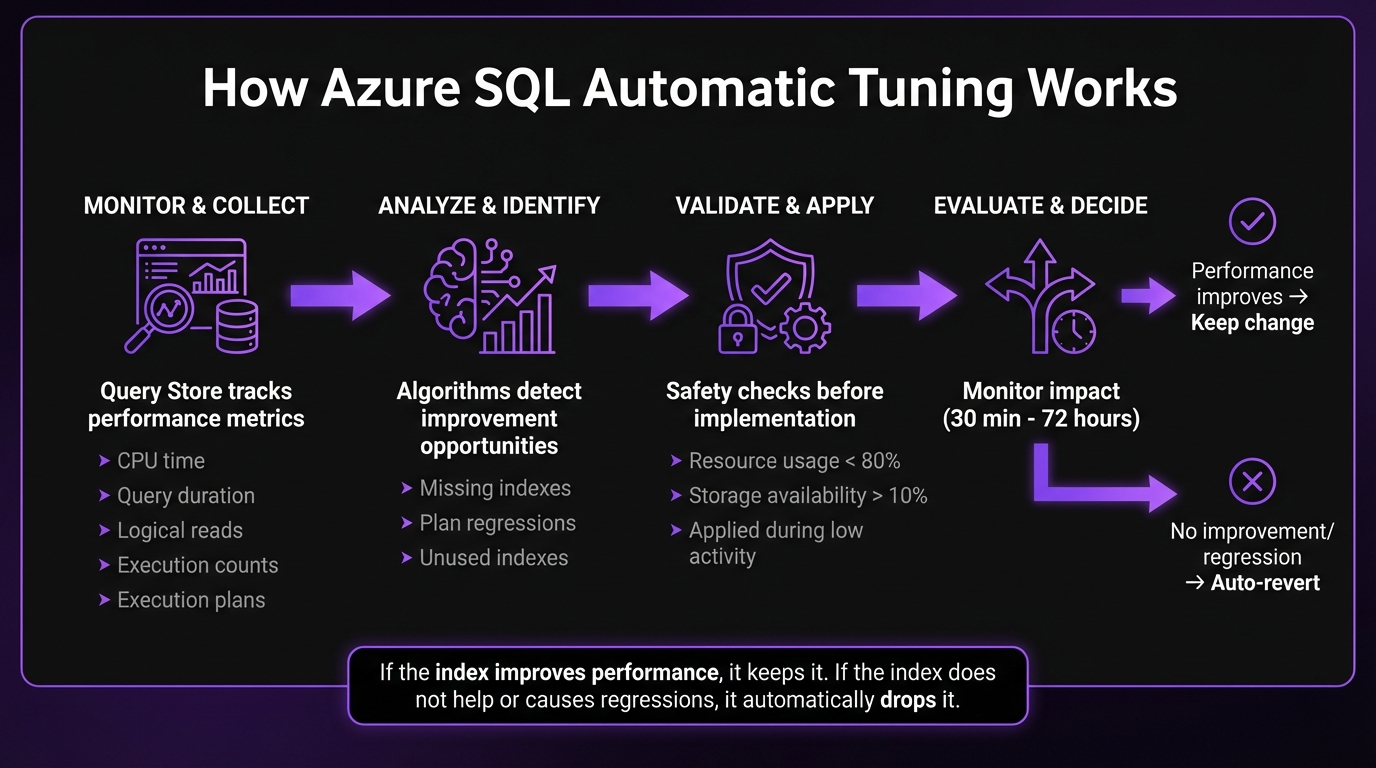
How Azure SQL Automatic Tuning Works: 4-Step Performance Optimization Process
Azure SQL uses a systematic approach to monitor queries, apply adjustments, and validate the results. Every step includes safeguards to maintain database stability.
The system gathers query metrics through Query Store, tracking details like CPU time, query duration, logical reads, execution counts, and execution plans. Using this data, algorithms identify potential improvements, such as missing indexes or plan regressions.
Before making any changes, Azure SQL ensures that resources are not overburdened. Specifically, it checks that resource usage stays below 80% and storage availability exceeds 10%. Once these conditions are met, it implements recommendations - like adding an index - during periods of low activity.
After applying a change, Azure SQL evaluates its impact by comparing performance metrics to established baselines over a monitoring window ranging from 30 minutes to 72 hours. If performance improves, the change remains in place. Otherwise, the system automatically reverts the modification.
"If the index improves performance, it keeps it. If the index does not help or causes regressions, it automatically drops it." [1]
For example, in February 2026, a 50 GB production database experienced a 25% performance improvement following automated adjustments. [1]
Next, learn how to enable and configure these tuning features using various tools.
How to Enable and Configure Automatic Tuning
Azure SQL provides three main ways to configure automatic tuning: the Azure Portal for a visual interface, T-SQL commands for those who prefer scripting, and Azure CLI for automation workflows. Before diving in, ensure that Query Store is enabled and set to "Read-Write" mode [4][1].
Automatic tuning settings can be applied at two levels: server level (impacting all databases) or database level (overriding server-level configurations) [4][1]. To start, enable FORCE_LAST_GOOD_PLAN for immediate regression protection, while keeping CREATE_INDEX and DROP_INDEX in manual mode initially for reviewing recommendations [1]. Once ready, follow the steps below based on your preferred method:
Using the Azure Portal
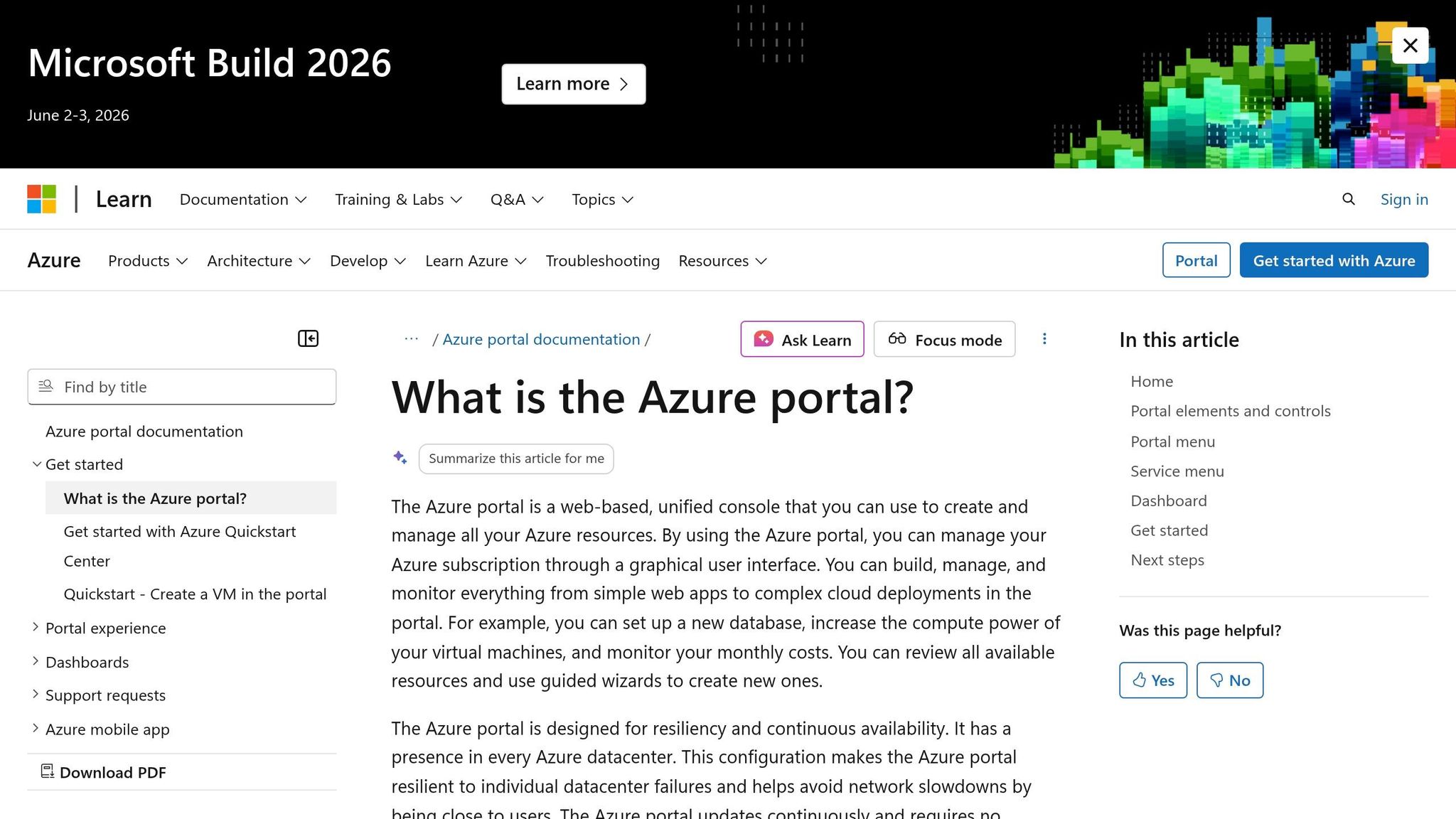
- Access the Portal: Log in to the Azure Portal and navigate to your SQL server or database.
- Locate the Settings: Under "Intelligent Performance", select "Automatic tuning."
- Configure Server-Level Tuning: Choose the desired options (On, Off, or Default) and click Apply to configure all databases on the server.
- Configure Database-Level Tuning: For individual databases, you can select options to turn them On, Off, or Inherit from the server settings.
Alternatively, go to the Performance recommendation page for a specific database, select Automate, enable or disable specific tuning actions, and click Apply. If you encounter a "Disabled by system" message, check whether Query Store is full or in read-only mode [4].
Using T-SQL Commands
For those who prefer working with scripts, T-SQL provides a straightforward way to configure automatic tuning:
-
Enable Features: Use the following command to enable specific features:
ALTER DATABASE CURRENT SET AUTOMATIC_TUNING ( CREATE_INDEX = ON, DROP_INDEX = ON, FORCE_LAST_GOOD_PLAN = ON ); -
Inherit Server Settings: To apply server-level settings across multiple databases, use:
ALTER DATABASE CURRENT SET AUTOMATIC_TUNING = INHERIT; -
Check Current Configuration: Run this query to view the desired and actual states of tuning options:
SELECT name, desired_state_desc, actual_state_desc
FROM sys.database_automatic_tuning_options;
For environments with active geo-replication, configure automatic tuning only on the primary database. Any changes, like index creation, will automatically replicate to secondary databases [4].
Using Azure CLI
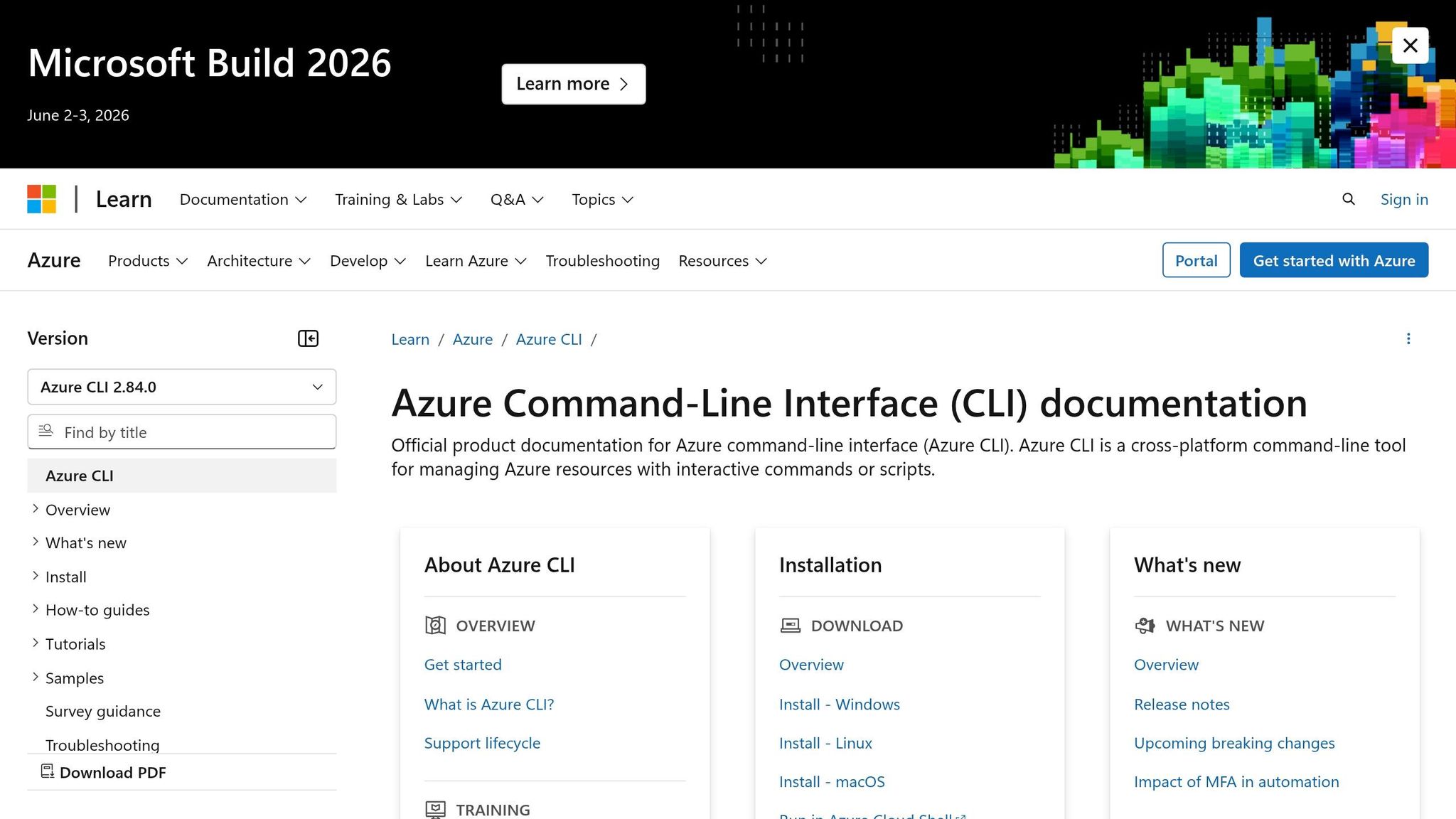
Azure CLI is another option for configuring automatic tuning, especially for those managing multiple resources:
-
Configure Server-Level Tuning: Use the following command to enable tuning at the server level:
az sql server update --resource-group myResourceGroup --name myserver \ --set tags.auto_tuning_create_index=ON \ --set tags.auto_tuning_drop_index=ON \ --set tags.auto_tuning_force_last_good_plan=ON -
Enable Specific Options for a Database: To enable a specific tuning option for a single database, run:
az sql db update --resource-group myResourceGroup --server myserver \
--name mydb --set tags.auto_tuning_create_index=ON
Each of these methods offers flexibility depending on your management preferences, whether you're an admin who prefers a graphical interface or a developer automating tasks with scripts.
Benefits of Automatic Tuning
Automatic tuning enhances performance by continuously adjusting database operations without requiring manual intervention. Using AI and machine learning, it tracks query execution in real time and adapts to changes in application behavior, user activity, and new feature implementations. These adjustments lead to noticeable performance improvements and operational efficiency.
In February 2026, Nawaz Dhandala from OneUptime shared an example where enabling automatic tuning on a 50 GB production database with around 200 unique queries improved query performance by 25%, based on average DTU consumption.
"It is not a silver bullet, but it is a solid layer of automation that keeps your database performing well with minimal manual effort" [1].
To ensure that production workloads remain unaffected, tuning actions are scheduled during times of low CPU and I/O usage - specifically when utilization is below 80%.
How to Monitor Tuning Activities
Azure offers two primary methods for tracking automatic tuning activities: the Azure Portal and T-SQL system views. On the portal's Automatic Tuning page, you can view all recommendations along with their current status - such as Pending, Executing, Applied, or Reverted - and the estimated impact on performance [1][3]. If a recommendation is marked as "Executing", it means the system is waiting for lower resource usage before moving forward [3].
For those who prefer deeper analysis, T-SQL provides powerful insights. By querying sys.dm_db_tuning_recommendations, you can review details like the type of recommendation (CREATE_INDEX, DROP_INDEX, FORCE_LAST_GOOD_PLAN), its state, and its performance score. A higher score suggests a greater potential impact [1]. Additional views, such as sys.database_automatic_tuning_options, reveal the tuning status, while sys.indexes (using the is_auto_created flag) helps identify automatically created indexes.
One key detail to remember: data in sys.dm_db_tuning_recommendations is cleared whenever the database engine restarts. To maintain a continuous record for auditing or trend analysis, enable diagnostic settings to capture tuning data over time. The AutomaticTuning diagnostic setting allows you to send this data to Log Analytics or Azure Storage. You can also use T-SQL functions like JSON_VALUE and OPENJSON to parse the details column in the recommendations DMV, which contains the T-SQL script needed to manually apply a recommendation if necessary.
Brent Ozar, Founder of Brent Ozar Unlimited, highlighted the system's thorough validation process:
"It [Automatic Tuning] does a way better job of validating its changes than most DBAs" [3].
Azure's Query Performance Insight tool complements these monitoring options by showcasing the most resource-intensive queries. This helps you connect tuning actions with actual performance improvements [5].
| Recommendation Status | Description |
|---|---|
| Active | Recommendation identified but not yet applied |
| Verifying | Recommendation applied; engine comparing performance against baseline |
| Success | Successfully applied with a positive performance impact |
| Reverted | Removed due to negligible gains or performance regression |
| Expired | Invalidated due to schema or statistics changes |
These tools provide the insights you need to make informed adjustments and seamlessly integrate tuning activities into your broader database optimization efforts.
Conclusion
Automatic tuning in Azure SQL takes the hassle out of performance management by handling key optimizations for you. This service, powered by AI, keeps an eye on your database performance, making adjustments and verifying their impact. By automating tasks like creating indexes, removing unused ones, and fixing plan regressions, it minimizes the need for constant manual oversight, freeing up your team to tackle more strategic projects.
What sets this system apart is its careful execution. Changes are applied during low-resource periods, and if a performance drop is detected, the system reverts the adjustments automatically. This thoughtful approach has consistently delivered results. For instance, databases with automatic tuning enabled have shown a 25% improvement in average DTU consumption within just one month, thanks to autonomous index management and plan correction efforts [1].
To get started, enable Force Last Good Plan first. It provides immediate protection against optimizer regressions with minimal risk. For index management, you might want to manually review recommendations for a couple of weeks before enabling full automation. Also, make sure Query Store is active with sufficient retention to support these features. This step-by-step adoption not only protects against performance issues but also sets the stage for a long-term strategy of continuous optimization.
FAQs
Is Automatic Tuning safe for production?
Automatic Tuning in Azure SQL is a reliable and secure option for production environments. This intelligent, fully managed feature constantly monitors query performance and applies optimizations to enhance efficiency. It’s designed with stability in mind, ensuring your database operates smoothly without causing interruptions.
What needs to be enabled before Automatic Tuning works?
To enable Automatic Tuning in Azure SQL, you need to activate it either at the server level or the database level. You can do this using the Azure portal, the REST API, or T-SQL commands. Once it's turned on, this feature can automatically handle tasks like creating or dropping indexes and optimizing query plans to enhance performance.
Why might Azure say a tuning action is disabled?
When Azure flags a tuning action as disabled, it usually means the system has automatically turned it off due to certain conditions. These might include the Query Store being set to read-only mode, not being enabled at all, or running out of its allocated storage space. Such issues stop automatic tuning from working as it should.


