
Access reviews in Microsoft Entra help ensure users only have access to what they need. This feature supports compliance with regulations like SOX and HIPAA while promoting security by enforcing the principle of least privilege. Here’s how to plan and implement them effectively:
- Purpose: Regularly review and validate user access to groups, applications, and roles.
- Benefits: Improve security, meet compliance requirements, reduce IT workload by delegating reviews to business owners.
- Requirements: Use Microsoft Entra ID Governance or Suite licenses. Assign appropriate roles (e.g., Global Administrator, Group Owner) to manage reviews.
- Steps:
- Define goals - focus on compliance and risk reduction.
- Identify resources - prioritize sensitive groups, apps, and roles.
- Set up reviews - configure frequency, reviewers, and outcomes.
- Automate and monitor - use tools like Microsoft Graph API for efficiency.
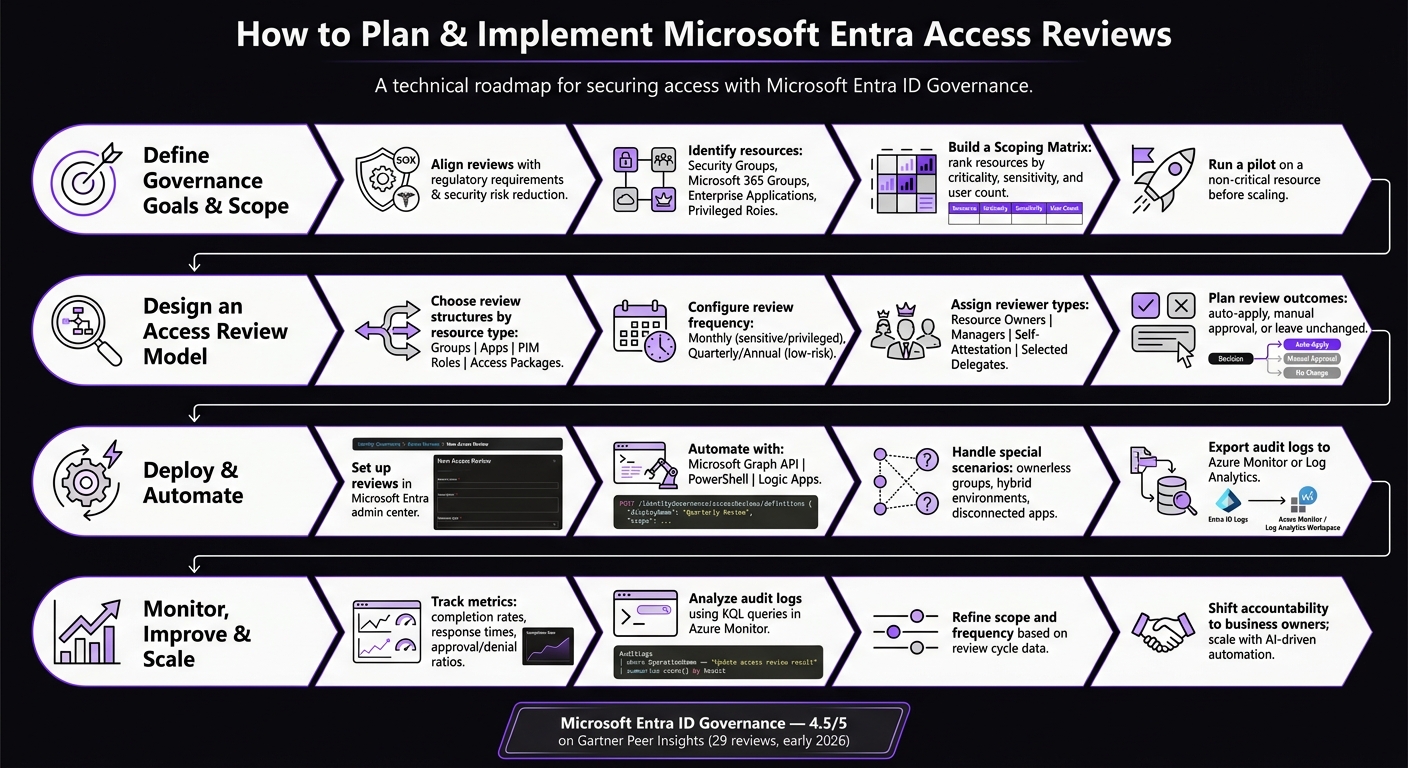
Microsoft Entra Access Reviews: End-to-End Planning Process
Define Governance Goals and Scope
Align Access Reviews with Governance Objectives
Start by clarifying the purpose behind each access review. Most organizations focus on meeting regulatory requirements, minimizing security risks by reducing unnecessary access, and streamlining administrative tasks.
The most effective approach shifts decision-making from IT teams to business owners.
"Access reviews support shifting responsibility of reviewing and acting on continued access to business owners. Decoupling access decisions from the IT department drives more accurate access decisions." - Microsoft Entra Documentation [1]
This shift is only effective if every group and application has a clearly defined owner in Microsoft Entra ID. Without an assigned owner, you risk having orphaned resources with no one qualified to review or approve access decisions [1]. Once governance objectives are set, the next step is to take stock of your resources.
Identify Resources to Review
Inventory your resources while keeping your governance goals in mind. These resources typically fall into four main categories:
- Security groups
- Microsoft 365 groups (including Teams)
- Enterprise applications
- Privileged roles (Microsoft Entra roles and Azure resource roles)
One important technical check: focus on groups with a membership type of "Assigned" and a source of "Cloud", as memberships for synced or dynamic groups cannot be directly modified in Microsoft Entra ID [3][2].
For privileged roles, prioritize those with the greatest impact, such as Global Administrator, User Administrator, Application Administrator, Privileged Role Administrator, and Security Administrator [3][2].
Build a Scoping Matrix
After listing your resources, rank them based on their risk and importance. Consider factors like criticality, sensitivity, and the number of users. For example, a line-of-business app managing financial data might require monthly reviews with a short response window. Meanwhile, a general distribution group for company-wide announcements might only need to be reviewed annually.
Here’s an example of how a scoping matrix entry might look for a sensitive application:
| Component | Example Value |
|---|---|
| Resource | Microsoft Dynamics (Sensitive LOB App) |
| Review Frequency | Monthly |
| Reviewer(s) | Dynamics Business Group Program Managers |
| User Scope | Everyone (internal and guest users) |
| Response Window | 48 hours from notification |
| Automatic Action | Remove access if no sign-in within 90 days |
To refine your process, start with a pilot review on a non-critical resource with a small user group. Avoid applying results automatically during this phase. This allows you to test your communication strategies, ensure all email addresses are correct, and verify reviewer assignments. Document any access removed during the pilot so it can be restored quickly if needed. This controlled approach helps you fine-tune the process before scaling up [1].
sbb-itb-79ce429
Design an Access Review Model
Choose Review Structures
When designing an access review model, it's essential to align each resource with the right review structure. Microsoft Entra supports reviews for various resource types, including Microsoft 365 groups, Security groups, Teams, enterprise applications, Access Packages, and Privileged Identity Management (PIM) roles. Each resource type requires specific roles to initiate a review.
| Resource Type | Required Role to Create Review |
|---|---|
| Groups or Applications | Global Admin, Identity Governance Admin, User Admin, or Group Owner (if enabled) |
| Microsoft Entra Roles | Global Administrator, Privileged Role Administrator |
| Azure Resource Roles | User Access Administrator, Resource Owner |
| Access Packages | Global Admin, Identity Governance Admin, Catalog Owner |
For critical resources, consider implementing multi-stage reviews. In this setup, initial decisions (e.g., managers filtering access) are followed by final approvals from resource owners. This layered approach ensures thorough oversight and minimizes errors.
Once the structure is chosen, configure the review settings to fit the resource's sensitivity and review needs.
Configure Review Settings
Adjust review frequency based on the risk level of the resource. For example:
- Monthly reviews for sensitive applications and privileged roles.
- Quarterly or annual reviews for lower-risk groups.
The user scope setting allows you to refine the review audience. You can include all users or focus on guest users. Additionally, you can target inactive users - those who haven't signed in for up to 730 days.
Assigning the right reviewers is crucial. Business or resource owners are often best positioned to assess access needs accurately. To avoid delays, configure fallback reviewers for cases where primary reviewers (like managers or group owners) are unavailable.
To encourage timely participation, customize reviewer emails with personalized messages and include links to internal training materials.
Here's a summary of reviewer types and when to use them:
| Reviewer Type | Best Use Case | Accountability Level |
|---|---|---|
| Resource/Group Owners | Business-critical apps or Teams | High - Owners understand access needs |
| Managers | Employee lifecycle / Direct reports | High - Managers monitor team roles |
| Self-Attestation | General access or low-risk groups | Moderate - Eases administrative overhead |
| Selected Delegates | Compliance or audit-specific reviews | High - Provides specialized oversight |
Once settings are in place, clearly define the outcomes for all review decisions.
Plan Review Outcomes
Decide in advance how to handle reviewer actions and non-responses. Options include leaving access unchanged, removing access, or auto-applying decisions. For multi-stage reviews, ensure outcomes are aligned across stages to streamline enforcement.
Testing these settings during a pilot phase can help prevent unintended access revocations. For large-scale reviews, enabling auto-apply can simplify the process by automatically revoking access for denied users as soon as the review is completed. However, auto-apply has limitations, such as its incompatibility with on-premises synced groups or certain guest user scenarios. Refer to Microsoft Entra documentation for guidance on these exceptions.
To make the review process more efficient, consider enabling Decision Helpers. These system-generated recommendations use factors like user inactivity (e.g., no sign-ins within 30 days) or peer group analysis through machine learning. By highlighting straightforward cases for denial, Decision Helpers reduce the workload for reviewers and help them focus on more complex cases.
Deploy and Automate Access Reviews
Set Up Access Reviews
Once your review model is ready, you can configure access reviews in the Identity Governance section of the Microsoft Entra admin center. Start by navigating to Identity Governance > Access Reviews > New Access Review. Choose the resource type you want to review - whether it's groups, applications, or roles - and define the scope, like all users or guest-only access.
Next, assign reviewers and set up notification preferences. You can customize reviewer emails and set reminders to improve response rates. Define key details like the review duration, start date, and what happens after the review - results can either be auto-applied or require manual approval.
To avoid unintended disruptions, pilot the process on a non-critical resource and disable the "Auto apply results" option. This lets you confirm the impact of any changes before automating the process.
These steps will help you establish a solid foundation for scaling and automating access reviews.
Use Automation Tools
Managing dozens or even hundreds of access reviews manually can quickly become overwhelming. To streamline the process, Microsoft offers several automation tools:
- Microsoft Graph API: Use this to programmatically create, start, collect decisions, and complete reviews [2].
- PowerShell: Ideal for bulk-creating reviews and exporting results for reporting purposes.
- Logic Apps: Automate custom actions, like creating helpdesk tickets when reviews are completed or specific decisions are made [2].
For compliance and auditing, you can pull decisions from completed reviews using the Microsoft Graph API, especially when a reviewer’s choice differs from the system recommendation [2]. Additionally, you can export access review audit logs to Azure Monitor or Log Analytics to create dashboards that track compliance trends over time [2].
Handle Special Scenarios
Sometimes, access reviews require adjustments for specific situations.
Groups without owners often present challenges. In these cases, administrators can assign the review to group members for self-review or delegate it to a designated security contact [2].
Hybrid environments add complexity, as access reviews cannot directly modify memberships for groups synchronized from on-premises Active Directory unless Microsoft Entra Cloud Sync group writeback is enabled. Without this feature, you’ll need to manually apply review results using a CSV export or PowerShell scripts [2].
For disconnected applications - those not integrated with protocols like SAML or OIDC - you can use the Custom Data Provided Resources option to upload access data via CSV. While reviewers can still provide decisions, an admin will need to manually apply the results afterward [4]. Additionally, privileged roles like Global Administrator or Security Administrator should be reviewed monthly due to their higher risk level [5].
| Scenario | Recommended Reviewer | Automated Action Options |
|---|---|---|
| Privileged Roles (PIM) | Specific Admins or Managers | Remove role assignment (Active or Eligible) |
| Guest Users | Group/Resource Owners | Remove from resource OR Block & Delete from tenant |
| On-Premises Groups | Designated IT Delegates | Manual application (CSV/PowerShell) or Cloud Sync |
| Teams Shared Channels | Team Owners | Remove B2B direct connect user/team access |
| Disconnected Apps | Application Business Owners | Manual application of results to local app store |
Microsoft Entra ID Access Reviews: Step-by-Step Configuration Guide (Identity Governance) #IGA
Monitor, Improve, and Scale Access Reviews
Once you've established a solid review model, the next step is to focus on continuous monitoring and refining your processes to maintain security and compliance.
Track and Analyze Review Metrics
Make use of Microsoft Entra audit logs to keep an eye on configuration changes, reviewer decisions, and enforcement actions. These logs, categorized under Policy, capture everything from updates to configurations to individual decisions and final enforcement outcomes.
For deeper insights, export these audit logs to Azure Monitor or Azure Event Hubs. From there, you can write Kusto (KQL) queries to identify trends, such as resources with consistently high denial rates or reviewers who approve access without adequate scrutiny [2].
Regularly evaluate decisions that deviate from system recommendations. This can help you spot potential security vulnerabilities [2].
| Audit Log Activity | What It Tells You |
|---|---|
| Create / Update / Delete access review | Tracks who is modifying governance configurations and when [2] |
| Approve / Deny / Reset decision | Provides insight into reviewer behavior across resources [2] |
| Apply decision / Access review ended | Indicates whether decisions are being enforced effectively [2] |
Use these insights to fine-tune your review processes for better outcomes.
Refine Review Processes
Metrics from audit logs can highlight areas for improvement. After each review cycle, assess data like completion rates, average response times, and the ratio of approvals to denials. For example, low completion rates might signal that the review scope is too broad or that reviewers lack the necessary context.
To address these issues, narrow the scope of reviews by limiting the users or resources involved in each cycle. Adjust review frequency based on risk levels - for instance, monthly reviews for privileged roles and quarterly for standard application access. If a reviewer frequently misses deadlines, consider reassigning their responsibilities to a group or application owner who likely has better insight into access needs.
"Decoupling access decisions from the IT department drives more accurate access decisions. This shift is a cultural change in the resource owner's accountability and responsibility." - Microsoft Entra Deployment Guide [6]
Scaling access reviews becomes more effective when accountability shifts to business owners rather than being centralized in IT. Group, application, and team owners are typically better equipped to determine whether access is still necessary [6].
Partner for Advanced Solutions
Once your processes are streamlined, scaling them with advanced tools can help manage complexity. For large environments with intricate access structures, automation and AI-driven decision support can make a noticeable impact.
Platforms like AppStream Studio specialize in building AI agents and automated workflows using Microsoft technologies like Azure, .NET, C#, Semantic Kernel, and Azure AI Services. These solutions go beyond what Entra’s built-in tools provide. For industries such as healthcare or financial services, they’ve developed production-ready solutions that meet compliance standards like HIPAA and SOC 2. If your access review program is growing faster than your team can handle, partnering with experts to implement intelligent automation through tools like Microsoft Graph API and Logic Apps is a practical next step.
Conclusion and Key Takeaways
Planning access reviews in Microsoft Entra is an ongoing effort to ensure access aligns with your business's current needs. When executed effectively, these reviews help minimize security risks, meet compliance requirements, and encourage accountability across teams.
Key Steps to Success
To build a successful access review program, focus on a few essential actions: involve the right stakeholders from the beginning, clearly identify which resources need oversight, and start with a small pilot before expanding. For example, you can test processes on non-critical resources to fine-tune your approach [6][2]. Adding training links to reviewer notification emails can also boost response rates and improve the quality of decisions [2].
Another tip? Shift the responsibility for review decisions from IT to business owners. This approach often leads to more accurate and informed assessments [2].
These steps create a solid foundation for a scalable and efficient access management strategy.
Future-Proof Your Access Management
As your organization grows, preparing for future challenges becomes critical. Tools like the Microsoft Graph API allow you to programmatically create and manage access reviews at scale. This makes it easier to handle governance for hundreds of resources without overloading your team [2][6]. Features like catalog-based reviews and governance for disconnected applications (e.g., legacy systems) highlight the platform's ongoing evolution [4].
"The solution provides all inclusive functionality that manages the full Identity life cycle... It can save a ton of time and resources and is fully automated." - IT Associate, IT Services [7]
Microsoft Entra ID Governance currently holds a 4.5/5 rating on Gartner Peer Insights, based on 29 reviews as of early 2026. Users frequently commend its seamless integration with the Conditional Access policy engine [7]. By investing in automation - whether through built-in tools or automated workflows - you can scale your access management processes efficiently and effectively.
FAQs
Which Entra resources should we review first?
To get started, refer to the "Plan a Microsoft Entra access reviews deployment" guide. This resource outlines the overall strategy for implementing access reviews effectively. Once you're familiar with the broader approach, dive into specific guides tailored to your needs, such as creating access reviews for groups, applications, or access packages. Prioritize materials that align closely with your organization's goals and focus areas.
How do we handle access reviews for on-prem synced or dynamic groups?
For groups synced from on-premises, manage and review access directly in your on-premises Active Directory, as these groups aren't manageable in the cloud. For dynamic groups, take advantage of Microsoft Entra ID’s access review tools to periodically or spontaneously review membership and access. If synced or dynamic groups are part of a catalog in Entra ID, catalog access reviews can include them. However, membership for synced groups continues to be managed on-premises.
What happens if reviewers don’t respond?
If reviewers fail to respond, the access review can still move forward using system-based recommendations. For instance, access might be denied to inactive users who haven't logged in within the past 30 days. Alternatively, the review can be extended or adjusted to prompt additional action. These measures help keep the process on track, even without direct input from reviewers.


