
If you want Cosmos DB changes to trigger code without polling, this setup does that. I use Cosmos DB Change Feed to detect inserts and updates, Azure Functions to process batches, and a lease container to track progress across partitions.
Here’s the short version:
- I create a Cosmos DB for NoSQL account, a source container, and a lease container
- I connect an Azure Function with a
CosmosDBTrigger - I process documents in batches, not one by one
- I make the handler idempotent because change feed uses at-least-once delivery
- I watch RU/s, lag, errors, and batch time
- I lock down access with Private Endpoints, firewall rules, and managed identity
- I tune settings like
MaxItemsPerInvocation, lease prefix, and poll delay based on load
A few facts matter here. Cosmos DB processes changes by logical partition, and items with the same partition key are handled in order. The default feed poll delay is 5,000 ms, and the default lease expiration interval is 60,000 ms. Those numbers affect how often the function checks for new work and how lease ownership shifts if an instance stops responding.
What I’d keep in mind before deployment:
- Pick the partition key carefully because it affects scale and feed reads
- Use a separate lease container for checkpoints
- Use
LeaseContainerPrefixwhen more than one function reads the same feed - Keep downstream writes safe to repeat by checking
_etagor a version field - Use Direct connection mode in
host.jsonfor production - Test local access if Cosmos DB is behind a VNet or firewall
This setup fits common patterns like CQRS, materialized views, service-to-service event flow, and alerts. In plain English: when a document changes, the function runs, handles the batch, and pushes the result where it needs to go.
A quick view of the main moving parts:
| Part | What I use it for |
|---|---|
| Source container | Stores the documents that change |
| Change Feed | Exposes inserts and updates as a stream |
| Azure Function | Reads batches and runs code |
| Lease container | Stores checkpoints and lease data |
| Downstream target | Search index, queue, database, API, or workflow |
If I were setting this up today, on June 25, 2026, I’d treat duplicate handling, lease setup, and network access as the first things to get right.
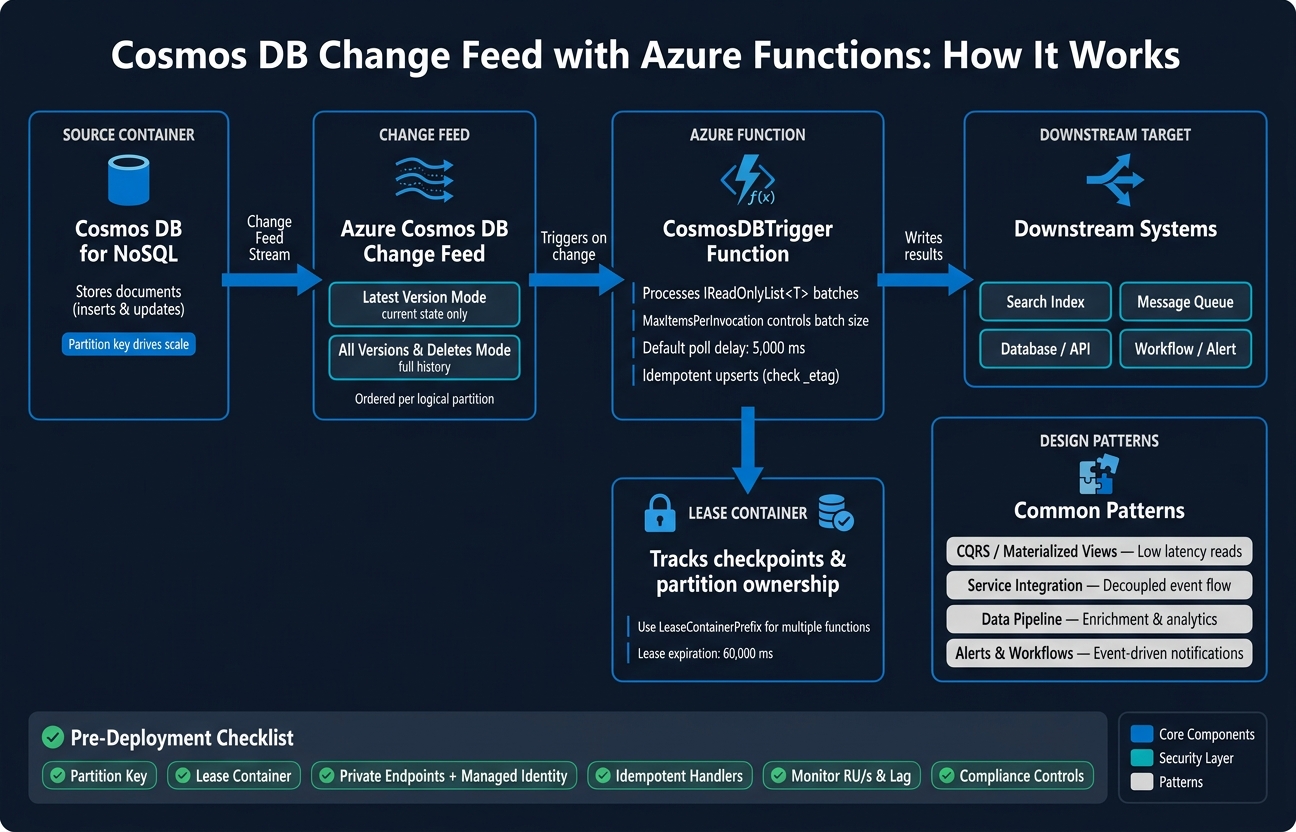
Cosmos DB Change Feed + Azure Functions: End-to-End Architecture
Prepare Azure Cosmos DB for Change Feed Processing
Create the Cosmos DB Account, Database, and Source Container
Start by creating an Azure Cosmos DB for NoSQL account. Then add the database and source container.
Pick a region close to your users or the systems that will consume the data. If uptime matters, plan for regional failover from the start. Also, spend time on the partition key. It’s one of the biggest choices here, and it has a direct effect on how well your Function App can read and process the change feed.
Before you go live, review a few core settings:
- Partition key
- Indexing
- Schema
- Data retention
- RU/s
These settings shape cost, throughput, and feed read performance.
Configure Change Feed Mode and the Lease Container
Once the source container is ready, set how the change history should be read.
Use Latest Version Mode if you only need the current state of each item. Use All Versions and Deletes Mode if you need the full history, including deletes.
You’ll also need a separate lease container. The Function App uses it to store checkpoints and partition leases.
Secure Connections and Network Access
If you need network isolation, enable Private Endpoints on the Cosmos DB account to limit access to a VNet and block public internet access [1][3]. Then add firewall rules so the Function App can reach the Cosmos DB account [1].
When private endpoints are on, add developer and CI/CD public IPs to the Cosmos DB firewall allow list for data access or Data Explorer [1][3].
With those access controls set, you can connect the Function App to the feed.
sbb-itb-79ce429
Working with the Azure Cosmos DB Change Feed using Azure Functions and C#
Build the Azure Function That Listens to Change Feed
With Cosmos DB ready, the next step is wiring your Function App to the change feed. This is the point where the feed turns into an event-driven function: when data changes in Cosmos DB, the function wakes up, reads a batch, runs your logic, and sends the result to another system.
Create the Function App and Add the Cosmos DB Trigger
Start by creating a new Function App project with Azure Functions Core Tools:
func init CosmosChangeFeed --dotnet-isolated
The --dotnet-isolated flag sets up the isolated worker model. After that, add the NuGet package your trigger needs:
dotnet add package Microsoft.Azure.Functions.Worker.Extensions.CosmosDB
That package adds the Cosmos DB trigger binding. Next, create a function file and decorate the method with the [CosmosDBTrigger] attribute. These are the main binding properties to set:
| Property | Purpose | Required |
|---|---|---|
databaseName |
The database being monitored | Yes |
containerName |
The source container | Yes |
Connection |
App setting name for the connection string | Yes |
LeaseContainerName |
Container that stores checkpoints (defaults to leases) |
No |
CreateLeaseContainerIfNotExists |
Auto-creates the lease container on first run | No |
MaxItemsPerInvocation |
Limits items per invocation | No |
For production, set connectionMode to Direct in host.json under the cosmosDB extension settings [2]:
{
  "extensions": {
    "cosmosDB": {
      "connectionMode": "Direct"
    }
  }
}
Process Document Batches and Write to a Downstream Target
The trigger passes documents as IReadOnlyList<T>, where T is your strongly typed model. A minimal function signature looks like this:
[Function("ProductSyncFunction")]
public async Task Run(
    [CosmosDBTrigger(
        databaseName: "StoreDB",
        containerName: "Products",
        Connection = "CosmosDBConnection",
        LeaseContainerName = "leases",
        CreateLeaseContainerIfNotExists = true)] IReadOnlyList<Product> changes,
    FunctionContext context)
Inside the function, loop through the batch and run your business logic. In plain English: each invocation may hand you several changed documents at once, not just one. That makes batch handling part of the normal flow, not some edge case.
You’ll also want idempotent processing. If the same item shows up again, your downstream system shouldn’t get duplicate writes. A common way to handle that is to check _etag or a version field before writing [2].
Run and Debug the Function Locally
Add the Cosmos DB connection string to local.settings.json using the same name referenced by the trigger. Then run the function locally, insert or update a document, and check the logs to make sure the trigger fires.
If your Cosmos DB account is behind a VNet, add your development machine’s public IP to the firewall allow list [1].
Once the trigger works on your machine, you’re in a good spot to move on to scaling, retries, and monitoring. Local testing helps you confirm the trigger wiring first, so you’re not chasing setup issues later.
Operate, Scale, and Harden the Integration
Once the trigger works on your machine, the next step is figuring out how it holds up in production. That means load, retries, lease behavior, and the guardrails around security and monitoring.
Understand Scale, Leases, and Parallel Processing
The lease container is what keeps parallel processing from turning into chaos. Azure Functions uses leases to split change feed batches across function instances, so work can be spread out instead of piling onto one worker.
If more than one function reads the same change feed, you need to keep their leases separate. A common case is one function pushing data into a search index while another sends events to a message bus. In that setup, use LeaseContainerPrefix so each function gets its own lease namespace inside the same container. If you skip the prefix, the functions can step on each other and cause processing issues.
| Binding Property | Default | What It Controls |
|---|---|---|
FeedPollDelay |
5,000 ms | Time to wait before polling a partition again after changes are drained |
LeaseExpirationInterval |
60,000 ms | Time after which a lease expires if not renewed by the current instance |
LeaseContainerPrefix |
None | Allows multiple functions to share one lease container by prefixing lease IDs |
MaxItemsPerInvocation |
No fixed default | Limits the number of items per function call to manage downstream load |
MaxItemsPerInvocation matters more than it may seem at first glance. If your downstream system can't keep up, smaller batches can help smooth things out and reduce pressure.
Handle Retries, Duplicates, and Failures Safely
Treat change feed processing as duplicate delivery by default. In plain English: the same item may show up more than once, and your code needs to handle that without making a mess.
The safest pattern is to use idempotent upserts. Instead of inserting every item as if it's brand new, write data in a way that can safely run again. A stable key in the downstream system helps a lot here.
It's also smart to isolate bad records instead of letting one bad document take down the whole batch. Process each batch in a way that lets failures be handled one item at a time when needed, and send poison documents to a separate error store for later review.
Monitor RU/s, Lag, Errors, and Compliance Controls
You need visibility into both the trigger and the systems around it. Use Application Insights and Azure Monitor to watch failures, batch duration, RU/s, and change feed lag. Add custom telemetry for batch size and downstream write latency too. That extra detail makes it much easier to spot whether the slowdown is coming from Cosmos DB, your function app, or the target system.
On the security side, keep the setup tight:
- Use managed identity
- Apply least-privilege access
- Encrypt data in transit and at rest
If lag starts to climb, you usually have two levers to pull: increase throughput or reduce batch size. One gives the pipeline more room to breathe. The other lowers pressure on downstream writes.
With those controls in place, the integration is in good shape for downstream patterns like CQRS and materialized views.
Apply Common Design Patterns and Wrap Up the Implementation
Use Change Feed for CQRS, Materialized Views, and Service Integration
Once batching, retries, and monitoring are set, pick the pattern that lines up with how the data will be used. The best move is usually the simple one. If a lighter pattern does the job, use it.
CQRS and materialized views make sense when writes and reads need different performance behavior. A retail dashboard, for example, can use Change Feed to keep inventory reads up to date without putting extra pressure on the write path.
Service integration is another strong option. If a core banking system records a transaction, Change Feed can send that event to a separate fraud detection service. This works well when one service needs a clean, decoupled stream of changes from another.
Alerts and workflows fit smaller, event-driven tasks. One simple example is sending an SMS alert when a high-priority support ticket is created.
Use the table below for a quick side-by-side view.
Comparison Table: Which Pattern Fits Your Workflow
| Pattern | Primary Use Case | Complexity | Latency |
|---|---|---|---|
| CQRS / Materialized Views | High-performance read models | Medium | Low (sub-second) |
| Service Integration | Decoupling service logic | High | Low to medium |
| Data Processing Pipeline | Data enrichment and analytics | Medium | Medium |
| Alerts and Workflows | Notifications and workflows | Low | Medium |
Conclusion: Production Checklist
Before deployment, verify these items.
- Partition key: Check partitioning before go-live.
- Lease container: Make sure lease handling fits the workload.
- Secure connections and network access: Turn on VNet integration and managed identity.
- Idempotent handlers: Make downstream processing safe to run more than once.
- Observability: Track lag, errors, and RU/s.
- Compliance controls: Review access, networking, and data protection needs before launch.
These checks help keep the integration steady in production.
FAQs
How do I choose the right partition key?
Choose a partition key that spreads data evenly and can grow across physical partitions. That matters because the change feed processes data in parallel by using partition key ranges.
With the Azure Functions trigger, modification order is guaranteed only within a single partition key. It is not guaranteed across different partition key values.
If you manage the lease container yourself, use /id as the partition key.
What happens if the same change is processed twice?
The Azure Cosmos DB change feed processor behind the Azure Functions trigger uses at-least-once delivery.
In plain English, each change gets processed at least one time. But now and then, the same change can show up more than once.
That’s why your application logic should be idempotent. In other words, it should handle duplicate event processing without breaking, double-writing data, or causing side effects.
When should I use All Versions and Deletes mode?
Use All Versions and Deletes mode when you need to record delete operations, TTL expirations, and every item change in the exact order it happened. That includes in-between updates that can happen between reads.
You’ll also need this mode for multi-region accounts if you must record all changes. In that setup, latest-version mode can miss incoming changes. One catch: this mode requires continuous backups on your account.


