
The short answer: set one Azure SQL maintenance window on purpose, line it up with the Azure region’s local time, keep heavy jobs out of that window, and check the setting again after migration.
If I want fewer user-facing issues during planned Azure work, I focus on four things first:
- Pick the right window type: System Default, Weekday, or Weekend
- Match the window to the region’s local time: not my office time zone
- Use the same setting across related SQL resources: single databases, elastic pools, and Managed Instances
- Prepare for brief failovers: retries, monitoring, and post-change checks matter
Planned Azure SQL maintenance often runs in an 8-hour window from 10:00 PM to 6:00 AM on allowed nights. During that time, a short failover can happen. That can mean dropped connections, short slowdowns, or both. So the goal is simple: move that risk away from peak traffic.
Here’s the full checklist at a glance:
- Confirm which Azure SQL resource I manage
- Inventory each resource and its current setting
- Choose between System Default, Weekday, and Weekend
- Verify the Azure region’s local clock before setting anything
- Keep one schedule across the app stack
- Apply the setting the same way in dev, test, and prod
- Record owner, SLA, region, and approval
- Make sure retry logic and transient fault handling work
- Move ETL, reporting, batch jobs, and index work outside the window
- Use Azure Monitor and Query Store to compare before vs. after
- Recheck settings 30 to 90 days after migration
- Use policy and central reporting to catch drift
Maintenance windows and deployments
sbb-itb-79ce429
Quick Comparison
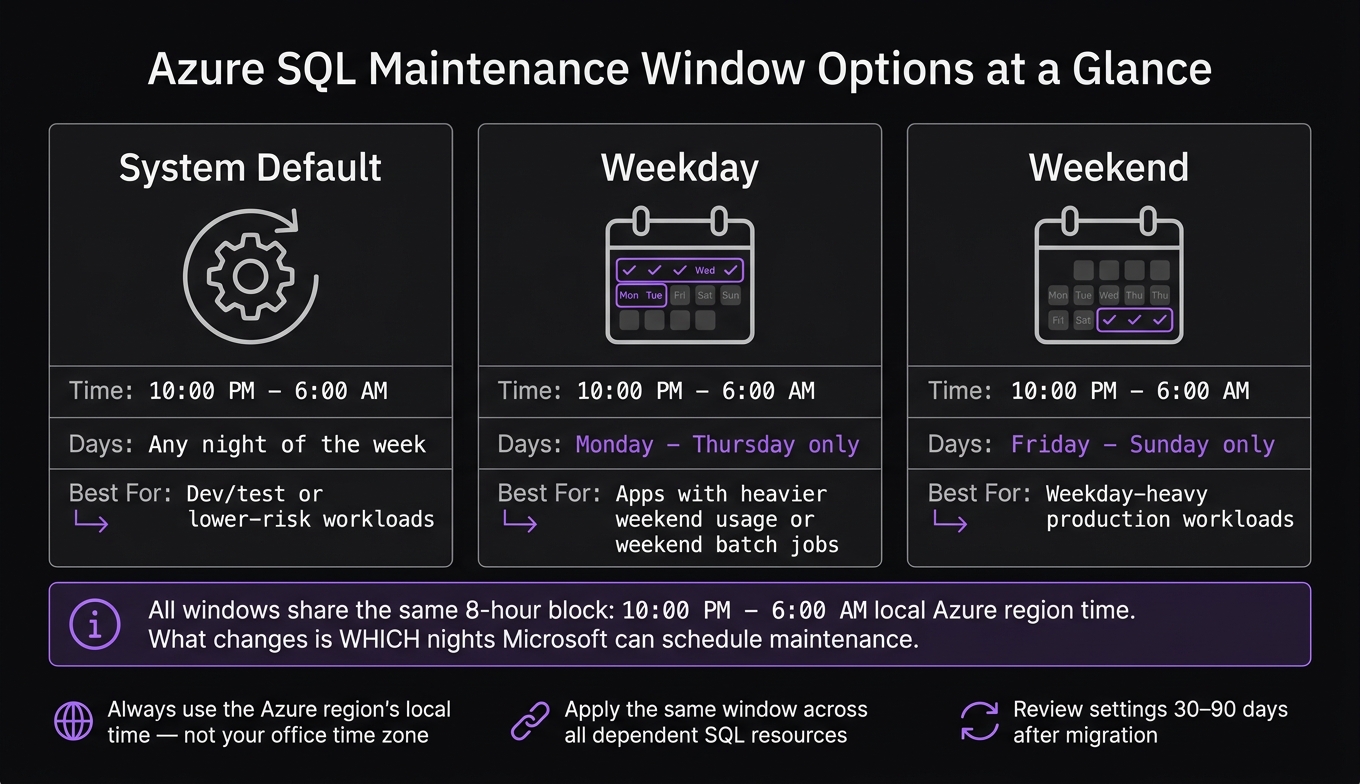
Azure SQL Maintenance Window Options Compared
| Option | Time | Days | Best fit |
|---|---|---|---|
| System Default | 10:00 PM–6:00 AM | Any night | Lower-risk or dev/test workloads |
| Weekday | 10:00 PM–6:00 AM | Monday–Thursday | Apps that stay busier on weekends |
| Weekend | 10:00 PM–6:00 AM | Friday–Sunday | Apps with heavier weekday traffic |
Bottom line: if I treat maintenance windows as a set-once detail, I risk updates landing during business hours. If I review them as part of migration, workload changes, and monthly checks, I cut surprise downtime and make post-maintenance issues much easier to spot.
Checklist: Choose the right maintenance window option
Compare the system default, weekday, and weekend options
Pick the window that fits how your app is used. The timing stays the same. What changes is which nights Microsoft can use for maintenance.
| Window Option | When It Runs | Typical Use |
|---|---|---|
| System Default | 10:00 PM – 6:00 AM, any night | Dev/test or low-risk workloads |
| Weekday | 10:00 PM – 6:00 AM, Monday–Thursday | Apps with heavier weekend usage or weekend batch jobs |
| Weekend | 10:00 PM – 6:00 AM, Friday–Sunday | Weekday-heavy production workloads |
A simple way to think about it: if weekends are busy for your app, Weekday is usually the safer pick. If your traffic spikes during the workweek, Weekend often makes more sense. And if the workload is lower risk, System Default can be enough.
Check regional local time before choosing a schedule
This part trips people up all the time: the maintenance window uses the local time of the Azure region where the database runs, not your company headquarters time zone.
So if your database is hosted in one region and your users or jobs run in another, don’t assume the 10:00 PM–6:00 AM block lines up the way you expect. Map that local window to the time zone your users, ETL processes, and reporting jobs actually follow. It’s also smart to move ETL and reporting jobs away from the start of the window.
Use one maintenance strategy across a shared application stack
If you already built a resource inventory in the introduction, use it here. Keep the same maintenance window across the full stack.
Why? Because if your app depends on an Azure SQL Database, an elastic pool, and a Managed Instance, mixing window options can put those resources into maintenance at different times. That makes problems harder to diagnose and can lead to uneven user impact.
Use one window across all dependent Azure SQL resources, then apply it the same way in the portal or through automation.
Checklist: Configure maintenance windows consistently
Set and verify the window in Azure portal or automation tools
After you choose the window, lock it in with a repeatable setup.
Manual clicks don't scale. Use the same setup in dev, test, and production. You can do that in the Azure portal or through automation. The main point is simple: apply the same maintenance window from the same template or policy in every environment.
Once the setting is in place, verify it. Check the resource configuration in the portal or with CLI. Confirm the selected window option and the Azure region. After migration, check again and make sure the configured window matches the intended operating schedule.
Document ownership, SLAs, and change history
Then write down the decision so operations, support, and compliance all work from the same source of truth.
Record four items for each Azure SQL resource:
- Who owns the resource
- What SLA it carries
- What maintenance window is set, and in which region
- Who approved the change
Track the resource name, Azure region, local maintenance schedule, and application owner in one record. Treat it as a control, not a note.
Checklist: Reduce downtime and performance impact during maintenance
Once the window is set, the next step is to keep the blast radius small. That usually comes down to three things: app resiliency, smart workload timing, and close monitoring after the work is done.
Confirm retry logic and transient fault handling are in place
Planned maintenance can briefly drop connections. So before the window starts, check that your retry logic and connection resiliency are working the way you expect.
Your application and data access layer should be able to recover from transient failures without throwing avoidable errors in front of users. If a connection resets for a moment, the app shouldn't fall over. It should retry, reconnect, and move on.
It also helps to confirm your failback and restore plan ahead of time. If maintenance leads to a performance drop, you need a fast way to restore service and cut the impact.
Schedule heavy jobs outside peak usage periods
Move database jobs, ETL runs, index maintenance tasks, and batch workloads outside the maintenance window and outside peak hours. This cuts down on resource contention and gives the platform room to recover cleanly.
| Task | Best Timing | Why |
|---|---|---|
| ETL loads | Outside the maintenance window | Reduces resource contention |
| Index maintenance tasks | Outside the maintenance window | Avoids competing with platform work |
| Batch processing jobs | Outside the maintenance window | Keeps background work from slowing recovery |
| Long-running reporting and BI queries | Outside the maintenance window | Prevents extended read duration from adding resource pressure |
| Bulk inserts, updates, or deletes | Outside the maintenance window | Lowers transaction log pressure |
Measure impact with Azure Monitor and Query Store
Capture a baseline before the window opens, then compare Azure Monitor and Query Store after maintenance. That makes it much easier to spot regressions, confirm recovery, and tune where needed.
Use those results to flag resources that may need a schedule review after migration or workload changes [1][2].
Checklist: Govern maintenance windows after migration and at scale
Review maintenance settings after migrations and major workload changes
Use post-maintenance performance data to decide when the schedule needs another look.
After a migration, workload patterns often change. Peak hours move, query volume shifts, and regional traffic can look very different from what you planned for. A maintenance window that looked fine on paper can end up landing right in the middle of a busy stretch.
Review the schedule 30–90 days after migration against actual usage data. Then recheck regional local time to make sure the window still lines up with the Azure region you're running in.
Enforce standards with policy and centralized reporting
At scale, manual checks stop being enough. Without policy guardrails, databases can drift back to defaults that no one has reviewed. Keep a central inventory across subscriptions and resource groups, and use Azure Policy and reporting to flag or block noncompliant deployments.
That kind of central control helps keep maintenance predictable as your estate grows. Pick the right window for your resource type and Azure region. Set it the same way each time through the portal or automation tools. Keep heavy jobs away from the window. Make sure your application can handle brief connection interruptions. Then watch results over time with Azure Monitor and Query Store so you catch regressions before users do.
FAQs
How do I tell which window fits my workload?
First, catalog each workload and spell out what it needs: business importance, data sensitivity, regulatory constraints, uptime needs, and any blackout periods you need to avoid.
Then use Azure Migrate to map dependencies so related components stay together. Review usage patterns to spot off-peak hours, like weekends or other low-traffic windows, and leave buffer time for testing and troubleshooting.
What happens during an Azure SQL maintenance window?
During an Azure SQL maintenance window, teams handle the work that keeps systems stable and secure. That usually includes patching, capacity management, schema changes, and fixing configuration drift.
Because this work can cause downtime, teams usually schedule it during off-peak hours. They also back it up with testing, rollback plans, and coordination with broader runbooks.
Why should I recheck the window after migration?
Recheck your maintenance window after a migration to make sure no configuration drift slipped in and that the new setup still matches your operational limits, business impact assessments, and uptime requirements.
A migration can change settings and throw off earlier schedules. That can lead to performance problems or surprise downtime. Reviewing the window also helps confirm that patching, schema updates, and testing procedures still stay consistent and compliant.


