
Deploying Azure Logic Apps with Azure DevOps ensures smooth workflow automation and simplifies integration with apps, data, and services. This guide covers key steps for preparing, deploying, and validating Logic Apps in the Standard tier, which supports advanced features like containerization and local development. Here's a quick breakdown:
- Set Up Resources: Create Azure resources like a Standard Logic App, Azure Storage Account, and App Service Plan. Use Azure Key Vault for secure storage of secrets.
- Prepare Artifacts: Structure project files correctly, parameterize environment settings, and package deployment artifacts into a zip file.
- CI/CD Pipelines: Automate builds and deployments using Azure DevOps pipelines or Azure CLI. Ensure managed identities and permissions are properly configured.
- Validation: Test workflows, check pipeline logs, and monitor performance using tools like Application Insights.
This checklist helps ensure consistency, reduce manual errors, and streamline Logic App deployments across environments.
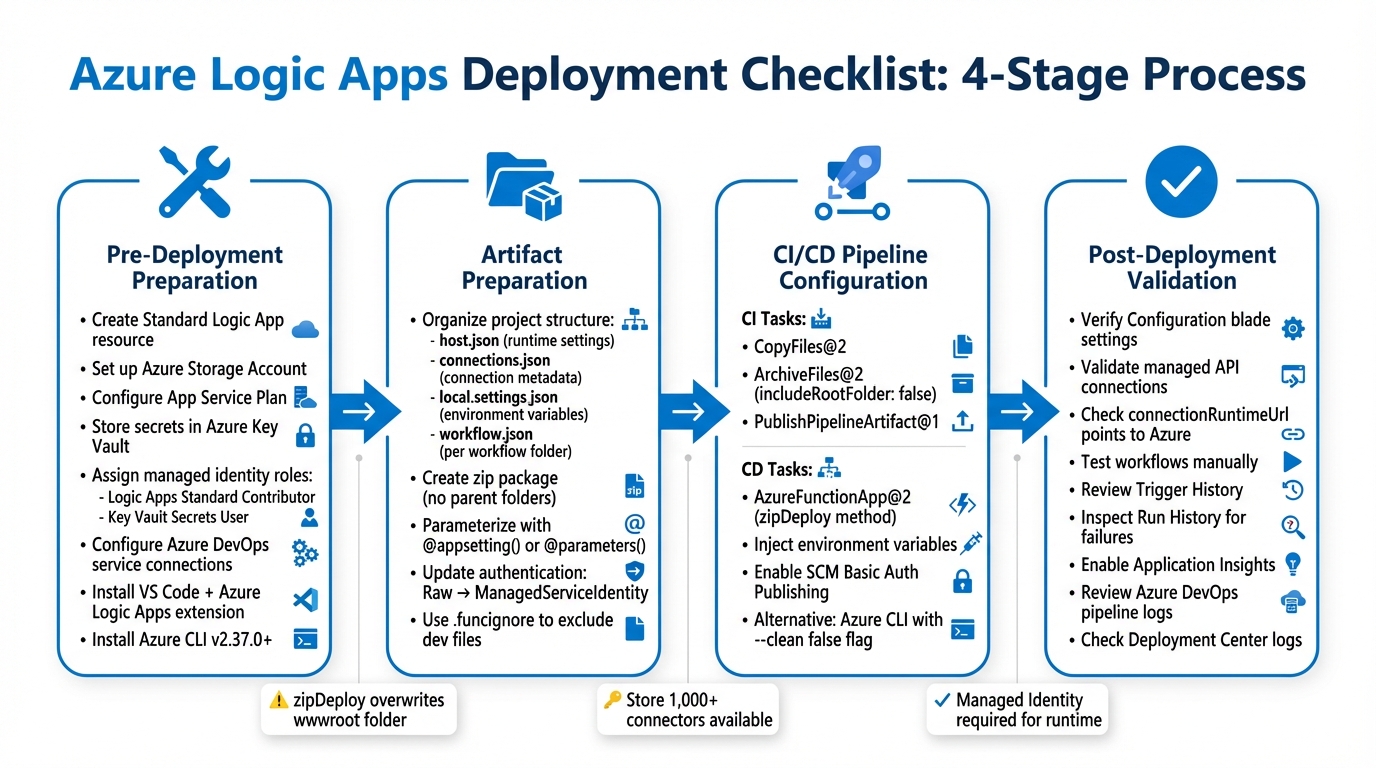
Azure Logic Apps Deployment Workflow: 4-Stage CI/CD Process
Pre-Deployment Preparation
Set Up Required Azure Resources
Start by creating a Resource Group and setting up a Standard Logic App resource. This requires a Workflow Standard hosting plan (built on the Azure Functions Premium plan) and a dedicated Azure Storage Account. Unlike serverless Consumption-tier Logic Apps, Standard Logic Apps rely on this setup to store workflow metadata, state, and run history for both stateful and stateless workflows.
If you’re using managed connectors like SQL or Office 365, you’ll need separate API Connection resources. Store connection strings and secrets securely in Azure Key Vault. To streamline automated deployment, assign a user-managed identity with the Logic Apps Standard Contributor and Key Vault Secrets User roles. Additionally, if you plan to use Deployment Center for continuous deployment, make sure to enable SCM Basic Auth Publishing Credentials in your Logic App’s configuration settings.
Once these resources are in place, configure the necessary service connections in Azure DevOps.
Configure Azure DevOps Service Connections
Set up an Azure Resource Manager service connection in Azure DevOps using a Microsoft Entra service principal. Assign this service principal the Contributor role at the resource group level.
"For authorization to deploy and generate the release pipeline, you also need a Microsoft Entra service principal." - Microsoft Learn
During the deployment process, retrieve the Logic App's managed identity details (Tenant ID and Object ID) to configure access policies for API connections.
Install Required Tools and Extensions
To prepare your development environment, install Visual Studio Code along with the Azure Logic Apps (Standard) extension. In Azure DevOps, add the Azure Logic Apps (Standard) Build and Release tasks. If you prefer CLI-based deployments, ensure you have Azure CLI v2.37.0+ installed, along with the Logic Apps extension. Use the following command to add the Logic Apps extension:
az extension add --yes --source "https://aka.ms/logicapp-latest-py2.py3-none-any.whl"
Additionally, update PIP by running:
python -m pip install --upgrade pip
Finally, install the Azure Functions Core Tools to complete your setup.
DevOps deployment for Azure Logic Apps (Standard)
Artifact Preparation and Project Structure
Once your Azure resources and service connections are ready, it's time to organize your project files and prepare the deployment artifacts.
Organize Project Files
Standard Logic Apps have a specific project structure that you'll need to follow. At the root level, make sure you have these three key configuration files:
- host.json: Contains runtime settings.
- connections.json: Stores connection metadata.
- local.settings.json: Holds local environment variables.
Each workflow in your project should be placed in its own folder, with a workflow.json file inside. This file defines the workflow's triggers and actions.
"In the single-tenant Azure Logic Apps model, the Standard logic app resource structure can include multiple workflows. This one-to-many relationship means that in the same logic app, workflows can share and reuse other resources." - Microsoft Learn
For B2B scenarios, create an Artifacts folder at the root. Inside it, organize subfolders for Maps, Schemas, and Rules. If you're working with custom assemblies (like Java or .NET), use a lib folder with subdirectories for builtinOperationSdks and custom libraries. To avoid issues, set your Visual Studio Code workspace root to the workflow project folder itself. This ensures that configuration files are generated in the correct locations.
Prepare Build Artifacts
When preparing your deployment package, make sure your zip archive has all files directly at its root. There shouldn't be any extra parent folders. A valid zip file will display your workflow folders, connections.json, and host.json immediately upon opening - no unnecessary directory nesting.
"The zipDeploy method used for Deploying Logic Apps Standard overwrites all/any existing files in the wwwroot folder." - KalyaniD, Microsoft
To exclude development-only files (like local.settings.json or Visual Studio Code configurations), use a .funcignore file when creating your deployment package.
Parameterize Environment Settings
Avoid hardcoding values in connections.json. Instead, use parameterization with @appsetting('setting-name') or @parameters('parameter-name'). This is especially important because the connectionRuntimeUrl changes when switching Azure regions or subscriptions. For local development, Managed API connections rely on "Raw" authentication, but you'll need to update the authentication object to "ManagedServiceIdentity" before deploying to Azure.
Sensitive information, such as connection strings and passwords, should be stored securely in Azure Key Vault. Use the @Microsoft.KeyVault syntax to reference them. For other environment-specific parameters, like URLs or email addresses, define them in a parameters.json file and map them to template parameters during deployment. This approach ensures flexibility and security across environments.
sbb-itb-79ce429
Pipeline Configuration
With your artifacts prepared, the next step is creating automation to move your Logic Apps across environments. Azure DevOps pipelines manage both the build process and deployment to Azure. Here's how to set up Continuous Integration (CI) and Continuous Deployment (CD).
Set Up Continuous Integration (CI)
Your CI pipeline should gather workflow folders and configuration files, then package them efficiently. Use the Azure Logic Apps (Standard) extension in Visual Studio Code to generate a CI-pipeline.yml file along with its variables. Key tasks in this process include:
- CopyFiles@2: Copies necessary files.
- ArchiveFiles@2: Compresses files into a zip package with
includeRootFolder: false. - PublishPipelineArtifact@1: Uploads the package as an artifact (e.g.,
logicAppCIArtifact) for use in the CD pipeline.
Before archiving, update the connections.json file to match the Azure portal format. This involves changing the authentication type from "Raw" to "ManagedServiceIdentity". This ensures the Logic App can authenticate connections at runtime using its system-assigned managed identity. Scripts during the build process can automatically inject environment-specific parameters, keeping your local development setup unaffected.
Configure Continuous Deployment (CD)
The AzureFunctionApp@2 task handles deployment of your zipped Logic App artifacts using the zipDeploy method. Here's what to configure:
deploymentMethod: Set tozipDeploy.appName: Specify your Logic App name.- Artifact Package: Point to the zipped package created in the CI process.
Store environment-specific settings (e.g., DEV, TEST, PROD) in Azure DevOps Variable Groups. Use the appSettings parameter to dynamically inject values such as connection strings, subscription IDs, and the connectionRuntimeUrl, which varies by region. The format for this is -SettingName SettingValue.
Additionally, ensure your Logic App's system-assigned managed identity has the required permissions to read connection secrets at runtime. This can be automated using ARM templates during infrastructure setup. Also, confirm that SCM Basic Auth Publishing Credentials is enabled in the Azure portal for your Logic App. Without this, zip deployments from pipelines will fail.
For more advanced control, refer to the CLI deployment instructions below.
Automate Deployment Using Azure CLI
For greater flexibility, use the Azure CLI command az logicapp deployment source config-zip in your pipeline tasks. This method allows you to:
- Use the
--clean falseflag to retain existing workflows in thewwwrootfolder, which is useful when adding new workflows without overwriting the current ones. - Customize deployment scenarios, especially when integrating with tools outside Azure DevOps.
Make sure you’re using the logicapp extension version 0.1.2+ for Azure CLI. This approach is ideal for scripting complex deployments or when additional control is needed.
Once deployment is complete, move on to post-deployment validation to ensure everything is configured correctly and workflows are performing as expected.
Post-Deployment Validation
Deploying your workflows is just one step. Ensuring they function as intended in Azure is equally important. A green checkmark in your pipeline doesn't always mean everything is working perfectly. Issues like connection authentication failures or missing app settings can quietly disrupt your workflows.
Validate Connections and App Settings
Start by checking the Configuration blade in the Azure portal. This is where environment-specific variables should be injected during deployment. For example, connection strings for built-in services like Service Bus or Event Hubs are stored here. If any are missing, your workflows will fail to connect to these services.
For managed API connections, use the Azure portal's workflow designer. Misconfigured connections or those requiring manual OAuth authorization will display warnings or prompts to fix the issue.
Make sure your Logic App's system-assigned managed identity has an access policy on each managed API connection resource. Without this policy, the runtime won’t be able to read connection secrets, leading to failures at the first connector action. Additionally, confirm that the connectionRuntimeUrl in the connections.json file points to the Azure-deployed connection resource, not a local endpoint.
| Configuration Item | Local Development (VS Code) | Deployed (Azure Portal) |
|---|---|---|
| Authentication Type | Raw or Key |
ManagedServiceIdentity |
| Access Control | User-based credentials | Managed Identity Access Policies |
| Connection URL | Localhost/Runtime URL | Azure Connection Runtime URL |
Once everything checks out, move on to testing your workflows.
Test Workflows
Manually trigger your workflows to ensure they work as expected. Use tools like PowerShell's Invoke-RestMethod, curl, or Bruno to send inbound HTTPS requests. Then, check the Trigger History in the Azure portal to verify that the trigger fired and received the correct data. If the workflow doesn’t start, review the trigger inputs to ensure they meet the required conditions.
After a successful trigger, inspect the Run History to identify any action failures. This section provides details about each step, including its status, inputs, outputs, and error messages. For stateless workflows, keep in mind that run history is disabled by default and must be enabled explicitly if you want to track execution details.
For more advanced diagnostics, enable Application Insights. This tool captures telemetry data, helping you trace performance issues or intermittent failures that might not be obvious in the standard run history.
Finally, don’t overlook pipeline logs - they can reveal silent errors that might otherwise go unnoticed.
Review Pipeline Logs
Check the Azure DevOps pipeline logs to confirm all tasks completed successfully. In the Azure portal, go to the Deployment Center and open the Logs tab to ensure the deployment synced with source control without issues. If workflows are missing, the logs can help you identify problems like the wwwroot folder being overwritten or a deployment failure.
One common error is the "non-decryptable secrets backups" issue, which happens when the storage container contains more than 10 host.snapshot files. Deleting the extra files usually resolves this.
| Troubleshooting Tool | Location | Purpose |
|---|---|---|
| Pipeline Logs | Azure DevOps | Verify build and deployment task success and artifact integrity. |
| Deployment Center Logs | Azure Portal | Confirm successful synchronization with source control. |
| Trigger History | Azure Portal | Diagnose why a workflow failed to start or received incorrect data. |
| Run History | Azure Portal | Identify specific action failures and review corresponding error messages. |
| Application Insights | Azure Monitor | Enable end-to-end tracing and performance monitoring. |
Conclusion
Key Takeaways
Using Logic Apps establishes a repeatable, managed process that ensures consistency across environments. As Microsoft highlights: "To maintain control and consistency, you can automate your environments and deploy more components faster and more confidently by using DevOps tools and processes."
The checklist approach brings clear advantages. By separating deployment artifacts, Logic Apps gain portability - whether running locally, in containers, or across various Azure environments. Parameterizing connections is crucial for avoiding issues tied to specific environments.
Built-in connections, which run directly within your logic app, often outperform external managed connections. Additionally, structured parameterization of configuration files simplifies moving code between environments. With over 1,000 connectors available in Azure Logic Apps, following a structured deployment process helps you make the most of these integrations while avoiding configuration drift.
These insights align with the steps outlined earlier, ensuring a smooth and reliable deployment process.
Next Steps
To maintain consistency and build on the strategies discussed:
- Begin by parameterizing your connections to eliminate environment-specific issues.
- Package your logic app resources into immutable zip artifacts that can progress through pipeline stages without changes.
- Store sensitive information securely in Azure Key Vault and reference it via app settings instead of embedding it in project files.
For better portability, extend the containerization techniques mentioned earlier and integrate workflows into your existing container-based DevOps pipelines. Create standardized workflow templates for your teams to ensure consistency across integration patterns. Enable Application Insights during deployment to monitor performance and detect failures immediately. Lastly, use the Azure CLI's --clean false flag during deployments to prevent overwriting existing workflows in your target environment.
FAQs
What are the key advantages of using Azure DevOps to deploy Logic Apps?
Using Azure DevOps to deploy Logic Apps brings several advantages that can simplify processes and boost productivity. One standout benefit is automation, which minimizes manual tasks by enabling continuous integration and continuous deployment (CI/CD) pipelines. This approach ensures Logic Apps are reliably built, tested, and deployed across different environments, leading to quicker releases and fewer mistakes.
Another key advantage is collaboration and version control. With tools like Visual Studio Code and Azure Repos, teams can manage code, track changes, and work together more efficiently. Features such as code reviews and rollback options help maintain deployment quality while offering flexibility. On top of that, Azure DevOps provides strong monitoring and diagnostic tools, making it easier to pinpoint and resolve issues, which enhances overall system stability.
By incorporating Azure DevOps, organizations can improve agility, maintain consistency, and strengthen control - all while adhering to high-quality and security standards.
What’s the best way to securely store secrets during an Azure Logic App deployment?
To keep secrets safe during an Azure Logic App deployment, leverage Azure Key Vault. This tool offers a centralized, secure place to manage cryptographic keys and sensitive information, protecting them from unauthorized access.
To strengthen security, avoid hardcoding secrets in scripts, enforce strict access controls, and perform regular permission audits. These practices not only improve security but also support compliance during the deployment process.
How can I validate the deployment of a Logic App in Azure?
To ensure your Logic App deployment in Azure is successful, start by verifying that the deployment process went through without any errors. You can do this by checking the Azure portal, reviewing logs from your DevOps pipeline, or examining deployment logs for any issues.
Next, confirm that all necessary resources are in place and correctly configured. This includes the Logic App Standard, App Service Plan, storage accounts, and any required connections. Missing or misconfigured resources can disrupt the functionality of your Logic App.
Once the deployment is complete, test the workflows within your Logic App. You can trigger them manually or use test events to confirm they execute as intended. Pay close attention to connection settings and access policies, particularly for connectors that need specific permissions to function properly.
Finally, leverage Azure's monitoring tools to keep an eye on performance and identify any problems. Tools like Azure Monitor, Application Insights, and the Logic App run history are invaluable for inspecting logs, tracking performance metrics, and troubleshooting issues. Following these steps will help you confirm that your Logic App is running smoothly in the Azure environment.


