
Mobile apps connected to Microsoft Azure face unique security challenges. Misconfigurations, weak authentication, and insecure APIs can expose sensitive data and entire cloud infrastructures. Here's a quick breakdown of key solutions to secure your apps:
- Identity Protection: Use Microsoft Entra ID for secure authentication, enforce MFA, and apply Conditional Access policies based on risk factors like location or device compliance.
- Device Security: Manage devices with Microsoft Intune, enforce compliance policies, and secure BYOD setups with app-based management and data containerization.
- Data Encryption: Encrypt data in transit (TLS 1.2 or higher) and at rest (AES-256). Use secure storage like Azure Key Vault for managing encryption keys.
- API Security: Enforce HTTPS, use OAuth 2.0 for token-based authentication, and implement rate limiting to prevent abuse.
- Threat Detection: Deploy Microsoft Defender for Endpoint to monitor mobile threats, phishing attempts, and risky apps. Automate responses with tools like Azure Logic Apps.
- Configuration Management: Back up tenant settings, monitor for configuration drift, and set alerts for unauthorized changes.
Protecting Corporate Data on Personal Cell Phones | Microsoft Security
Identity and Access Management for Mobile Apps
Protecting mobile apps integrated with Azure starts with strong identity and access management (IAM). It’s the first line of defense against attackers who could bypass device-level security and infiltrate your cloud environment. Microsoft Entra ID (formerly Azure Active Directory) serves as a cornerstone for securing mobile app authentication - when configured correctly.
But authentication alone isn’t enough. Every access point must balance tight security with a seamless user experience. This becomes especially challenging for mid-sized organizations, where employees often access business apps from personal devices or remote locations. Let’s dive into how Microsoft Entra ID can help you set up secure authentication and refine access control.
Setting Up Secure Authentication with Microsoft Entra ID
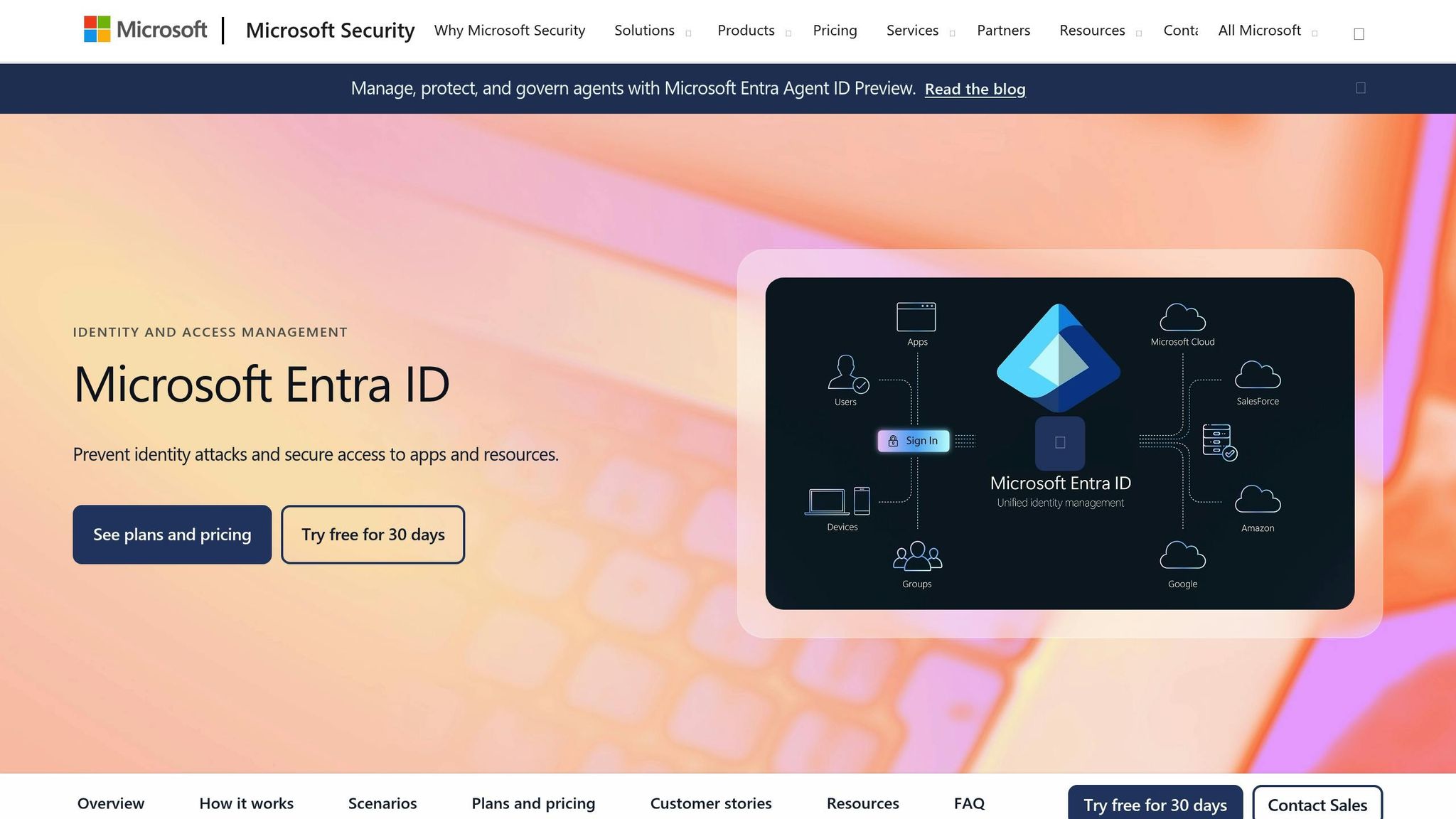
Microsoft Entra ID supports modern security protocols like OAuth 2.0 and OpenID Connect, which allow users to authenticate through a secure Microsoft login page without exposing passwords. Here’s how to get started:
- Register Your Mobile App: In the Entra admin center, register your app to define its interaction with Microsoft’s identity platform. Configure the redirect URI to match your app’s custom URL scheme, ensuring authentication responses are sent to the correct destination.
- Enforce MFA: Multi-factor authentication (MFA) is non-negotiable for mobile apps. Use Microsoft Entra ID’s security defaults or Conditional Access to require MFA for all users.
- Use MSAL for Token Management: The Microsoft Authentication Library (MSAL) simplifies secure token handling. Choose MSAL for iOS or Android, depending on your platform. These libraries also support single sign-on (SSO), enhancing user convenience without compromising security.
- Adjust Token Expiry: Standard access tokens expire in 60–90 minutes, but for highly sensitive apps, consider reducing this to 15–30 minutes to minimize risk.
- Implement Certificate-Based Authentication: For apps handling regulated data, bind authentication to device certificates stored in secure hardware. This reduces the risk of credential theft. Microsoft Entra ID supports this method through its public key infrastructure (PKI) integration.
Using Conditional Access Policies for Better Security
Secure authentication is just the beginning. Conditional Access policies add an extra layer of control by evaluating every sign-in attempt against specific security criteria. These policies allow you to tailor access requirements based on factors like location, device compliance, and risk levels.
- Baseline MFA Policy: Require MFA for all mobile app access, ensuring every user verifies their identity through multiple factors. Apply this policy across all cloud apps, including custom Azure-integrated ones.
- Device Compliance: Use Intune to define what constitutes a "compliant" device, such as requiring encryption, minimum OS versions, and the absence of jailbreaking or rooting. Then, create Conditional Access policies to block non-compliant devices from accessing your apps.
- Location-Based Restrictions: Limit access from high-risk regions. For example, if your business operates solely in the United States, block sign-ins from countries where you don’t have operations. This helps prevent credential-stuffing attacks from foreign IP addresses.
- Risk-Based Policies: Microsoft Entra ID Protection assigns risk scores to sign-in attempts based on factors like unusual travel patterns or leaked credentials. Use these scores to enforce additional authentication steps or block access entirely for high-risk sign-ins.
- Session Controls: Even after successful authentication, enforce restrictions to reduce data leakage. For apps handling sensitive information, enable app-enforced controls that prevent users from downloading files to unmanaged devices or copying data to personal apps.
Before fully enforcing Conditional Access policies, test them in report-only mode. This lets you see how the policies impact users without disrupting access. Run these tests for at least a week to identify and resolve potential issues.
Finally, apply the principle of least privilege when configuring grant controls. Instead of blanket access, require users to meet specific conditions, such as using approved client apps or compliant devices. This ensures access is only granted through secure, authorized channels.
Device-Level Security for Mobile Apps
Securing mobile apps starts with ensuring the devices accessing them are safe. Even with strong identity controls, a compromised device can leak sensitive data and credentials, putting your Azure environment at risk. Device-level security acts as a safeguard, ensuring that every device accessing your apps meets the necessary security requirements. Together with identity controls, this creates a comprehensive defense for your mobile applications.
For mid-sized organizations, managing device security becomes even trickier when personal and corporate devices mix. Without proper management, you're essentially relying on employees' personal security practices to protect your business data. That's where Microsoft Intune steps in, offering a balance between robust protection and user convenience.
Mobile Device Management with Intune
Microsoft Intune provides a centralized way to manage devices connected to your Azure-integrated apps. It enforces security policies, handles app distribution, and ensures compliance with organizational standards. Here's how to make the most of Intune's Mobile Device Management (MDM):
- Enroll Devices: Automate enrollment for company-owned devices using tools like Apple Business Manager (iOS) or Android Enterprise. For personal devices, employees can use the Company Portal app for user-initiated enrollment.
- Set Compliance Policies: Define minimum OS requirements (e.g., iOS 16, Android 12), enforce encryption, mandate PINs or biometric authentication, and block jailbroken or rooted devices.
- App Protection Policies: Restrict data sharing between managed and personal apps, disable screenshots for sensitive apps, and require a separate PIN for work apps. Configure policies to wipe corporate data after several failed login attempts or extended inactivity.
- Deploy Configuration Profiles: Push essential settings like Wi-Fi, VPN, or email configurations to devices. Use per-app VPNs to route only corporate app traffic through your secure network while leaving personal browsing unaffected.
- Conditional Access: Block app access on devices that are outdated, offline for over 30 days, or fail integrity checks. For high-security needs, require devices to check in with Intune every 12 hours.
- Monitor and Remediate: Use Intune's compliance dashboard to track device status. If a device falls out of compliance (e.g., due to a missed update), Intune can notify the user with steps to fix the issue. Persistent non-compliance can result in revoked access after seven days.
- Control App Distribution: Create an approved app catalog, automatically pushing required apps while blocking unapproved ones. For internal business apps, Intune can distribute builds directly, bypassing public app stores.
While these measures work well for managed devices, personal devices in BYOD (Bring Your Own Device) programs require a different approach.
BYOD Security Best Practices
BYOD programs offer flexibility but also bring unique security challenges. Employees value their privacy, while organizations need to ensure corporate data stays protected. The solution lies in striking a balance - securing business data without overstepping into personal space.
- App-Based Management: Instead of enrolling personal devices into full MDM, use Intune's Mobile Application Management (MAM). This secures corporate apps and data while leaving personal apps and information untouched.
- Data Containerization: Isolate corporate data within a secure container separate from personal apps. Emails, documents, and work-related data stay encrypted and can be wiped remotely without affecting personal content.
- App-Level Authentication: Require an additional authentication step for work apps, such as biometrics or a PIN. Regularly update these credentials (e.g., every 90 days) to maintain security.
- Restrict Data Sharing: Prevent corporate data from being copied or shared with personal apps. Ensure work documents are only accessible within managed apps.
- Enforce App Updates: Outdated apps are a common vulnerability. Block access to work apps if they’re more than 30 days behind the latest version, prompting users to update.
- Lost or Stolen Devices: Have a clear process for reporting lost devices. Remotely wipe corporate data immediately, and allow re-enrollment if the device is recovered.
- Define BYOD Policies: Clearly outline acceptable use, supported device types, and IT's access limits (e.g., IT can view corporate data logs but not personal information). Ensure employees agree to these terms before enrolling.
- Secure Network Access: Mandate always-on VPNs for work apps to protect data on public Wi-Fi networks. This encrypts traffic and prevents attacks like eavesdropping.
- Meet Compliance Standards: If your industry has strict regulations (e.g., HIPAA, FINRA), ensure your BYOD policies align with those requirements. Some regulations may restrict storing specific data on personal devices.
- Offer User Support: Make security policies user-friendly. Provide clear guides, tutorials, and responsive support to address issues quickly and avoid employees bypassing security measures.
The goal isn’t to turn personal devices into corporate-controlled assets. Instead, it’s about creating a secure workspace within personal devices - protecting your organization’s data while respecting employee privacy. When done right, BYOD programs can boost productivity without compromising security.
Data Protection and Compliance in Mobile Environments
Securing mobile data goes beyond identity and device security - it’s about safeguarding the data itself. Even with strong protections in place, mobile app data can still be at risk during transmission or storage. A single unencrypted file or insecure connection could expose sensitive business information, customer data, or intellectual property.
For mid-sized businesses, protecting data isn’t just a technical requirement - it’s a matter of trust and meeting legal responsibilities. Customers expect their information to be handled responsibly, while regulations demand proof of compliance with industry standards. The key challenge lies in implementing encryption and compliance measures that work seamlessly across mobile environments without overwhelming IT teams. Let’s dive into effective encryption strategies and compliance practices that keep mobile data secure.
Encrypting Mobile Data in Transit and at Rest
Encryption is the process of converting readable data into coded information that only authorized users can access. For mobile apps, encryption is essential both when data is being transmitted (in transit) and when it’s stored (at rest).
Securing Data in Transit
Whenever your mobile app communicates with Azure services, data travels across networks that may not be secure, such as public Wi-Fi or cellular connections. These transmissions are vulnerable to interception.
To protect data in transit:
- Enforce TLS 1.2 or higher for all communications and implement certificate pinning to prevent man-in-the-middle attacks. Ensure your Azure App Service blocks older, insecure protocols like TLS 1.0 and 1.1.
- In your app’s code, explicitly require TLS 1.2 or higher rather than relying on system settings. Include a backup mechanism for certificate updates to avoid user lockouts due to expired or changed certificates.
- Use Azure API Management to enforce encryption policies across APIs. Require HTTPS for all endpoints and reject any HTTP requests. For sensitive operations, configure mutual TLS (mTLS), which ensures both the client and server verify each other’s certificates.
- For real-time features like chat or video, use protocols designed for encrypted streaming. Azure Communication Services handles this automatically, but if building custom solutions, consider using Datagram Transport Layer Security (DTLS) for UDP-based communications.
Protecting Data at Rest
Data stored on mobile devices faces risks from lost or stolen devices, malware, or unauthorized access. Modern iOS and Android devices offer hardware-backed encryption, but apps must leverage these features correctly.
To secure data at rest:
- Use platform-specific secure storage: Keychain for iOS and Keystore for Android. These systems protect sensitive data and cryptographic keys. On iOS, set Keychain items to
kSecAttrAccessibleWhenUnlockedThisDeviceOnlyto restrict access to unlocked devices and prevent data transfer during backups. On Android, ensure cryptographic keys are stored in hardware-secured modules when available. - Avoid saving sensitive data in plain text files, shared preferences, or user defaults. Even with device-level encryption, apps with sufficient permissions - or on rooted or jailbroken devices - could access these areas.
- If temporary caching of sensitive data is necessary, encrypt it using AES-256 and store encryption keys in secure storage rather than hardcoding them into the app.
- For cloud storage, Azure Storage encrypts data at rest by default. Use Azure Key Vault to manage encryption keys, and consider customer-managed keys (CMK) for greater control. Azure SQL Database and Cosmos DB also provide automatic encryption for stored data. For offline data stored in SQLite databases on mobile devices, encrypt the entire database file using tools like SQLCipher with strong keys (at least 256 bits) stored securely.
To optimize encryption efforts, classify your data. Not all information requires the same level of protection. For example, a public product catalog doesn’t need the same safeguards as payment information or medical records. Tag data based on sensitivity and apply encryption policies accordingly to balance performance and security.
Meeting Compliance Standards for Mobile Apps
While encryption protects data, aligning with compliance frameworks builds trust and ensures adherence to legal requirements. These frameworks guide organizations in handling data responsibly and safeguarding user privacy. For mobile apps, this means proving that security measures consistently meet specific standards.
Understanding Common Frameworks
Industries and regions have different compliance requirements:
- HIPAA governs healthcare data in the U.S., enforcing strict controls over Protected Health Information (PHI), encryption, access logging, and agreements with third-party services.
- PCI DSS focuses on payment data, requiring that sensitive authentication data isn’t stored post-authorization, cardholder data is encrypted, and secure coding practices are followed.
- ISO 27001 outlines a comprehensive approach to security, including documented policies, ongoing risk assessments, and regular audits.
- NIST frameworks emphasize layered security, continuous monitoring, and strong incident response processes, especially for government-related organizations.
Implementing Compliance Controls
To meet compliance requirements:
- Start with a data inventory to document what your app collects, where it’s stored, how it’s transmitted, and who can access it. Map each data type to relevant compliance rules.
- Use role-based access control (RBAC) to ensure users only access data necessary for their roles. Manage permissions centrally with Microsoft Entra ID groups and enforce these controls in both your app and backend systems.
- Log all security events, including authentication attempts, data access, and configuration changes. Enable diagnostic logging in Azure services to capture API calls and database queries. Store logs in Azure Log Analytics, ensuring retention periods meet regulatory requirements - typically at least 90 days, though some regulations may require longer.
- Automate data lifecycle policies in Azure Storage and databases. Provide users with clear options to delete their accounts and associated data, ensuring deletion propagates across all systems, including backups.
- Document your encryption practices, including how keys are managed and rotated. Regularly rotate keys for sensitive data to reduce risk.
- Conduct regular security reviews of your app’s code using tools like Microsoft Security DevOps. Address critical vulnerabilities within 30 days and high-severity issues within 90 days. Track metrics like time-to-fix and recurrence rates to monitor improvement.
- Develop a clear incident response plan for security breaches involving mobile apps. Define roles for investigating, communicating with users, and notifying regulators. Test this plan annually to ensure readiness.
sbb-itb-79ce429
Threat Detection and Response for Mobile Apps
Ensuring mobile app security goes beyond strong data protections - it requires vigilant threat detection and fast responses to incidents. Since mobile devices often operate outside traditional network boundaries, continuous monitoring is essential to catch hidden vulnerabilities. A compromised device can quietly leak data for weeks or even act as a gateway to sensitive systems. The solution? Maintain visibility across mobile endpoints and automate responses to stop threats before they snowball.
Using Microsoft Defender for Mobile Threat Detection
Microsoft Defender for Endpoint extends its powerful threat detection to mobile devices running iOS and Android. By monitoring device behavior and flagging suspicious activity, it integrates seamlessly with your existing security setup, giving you a unified view of threats across your organization.
Setting Up Mobile Threat Detection
To get started, you'll need a Microsoft Defender for Endpoint license and Microsoft Intune for device management. In the Defender portal, go to Settings > Endpoints > Advanced features, enable mobile threat defense, and configure Intune to deploy the Defender app to managed devices.
- For iOS devices: Users download the Microsoft Defender app from the App Store and log in with their work credentials. The app uses a VPN connection to analyze network traffic but only sends threat indicators - not actual data - to Microsoft servers.
- For Android devices: Setup is similar, with Defender scanning installed apps for malware and assessing app permissions to detect potential risks.
Defender categorizes threats as low, medium, high, or critical. For example, a medium-risk alert might warn about a suspicious Wi-Fi network, while a critical alert could signal malware trying to access corporate data. You can define risk thresholds to trigger automated actions like blocking access to sensitive resources when a device reaches high-risk status.
Monitoring Common Mobile Threats
Defender watches for several mobile-specific threats:
- Phishing protection: It scans URLs in emails, messages, and browsers, alerting users before they access fraudulent sites, even within third-party apps.
- Network threats: It detects risky Wi-Fi networks or cellular connections that could intercept sensitive traffic.
- App-based risks: Defender scans Android apps for malicious behavior or excessive permissions. For instance, it flags apps like a flashlight app asking for access to contacts or location, which could indicate spyware.
- Device vulnerabilities: It identifies jailbroken iOS devices or rooted Android devices and takes action to prevent access to corporate systems.
Reviewing and Acting on Alerts
When a threat is detected, alerts appear in the Microsoft Defender portal under Incidents & alerts. Each alert includes detailed information about the device, user, threat type, and recommended actions. Quick review and remediation of these alerts are critical to minimizing the risk of attackers spreading through your systems.
The device timeline feature provides a detailed log of recent activities - like app installations or network connections - helping you determine if the threat is isolated or part of a larger attack. For example, if multiple devices in the same department show unusual network connections, it could signal a coordinated attack.
For confirmed threats, you can take immediate action through the portal. Options include isolating a device from the network (while allowing non-corporate activities), locking a lost or stolen device, or wiping corporate data while keeping personal data intact on BYOD devices.
Integrating with Conditional Access
Defender’s risk signals can integrate with Microsoft Entra ID Conditional Access policies for automated enforcement. For instance:
- Block sign-ins from high-risk devices.
- Require additional authentication for medium-risk devices.
- Revoke active sessions and block new sign-ins for devices flagged as critical risks.
This dynamic system adapts to real-time threats, ensuring devices connecting to malicious networks are prompted for extra security measures, while critical risks result in immediate access restrictions. Users receive clear instructions on resolving the issue, such as running a security scan or contacting IT support.
Automating Incident Response
Managing incidents manually becomes impractical when dealing with dozens or hundreds of mobile devices. Automation is key to responding in seconds rather than hours, stopping threats before they spread.
Building Automated Workflows with Logic Apps
Azure Logic Apps offers a visual tool to design workflows for automated responses. By connecting Logic Apps to the Microsoft Defender API, you can create workflows that react instantly to specific threats.
For example:
- When malware is detected, the Logic App can notify the user via Microsoft Teams or email, create an IT ticket, and quarantine the device through Intune.
- For phishing attempts, it can alert all users, block the malicious domain, and schedule security training reminders.
Responding to Compromised Credentials
If Defender detects credential theft - like a keylogger infection - an automated workflow can reset the user’s password, revoke active sessions, enforce multi-factor authentication re-registration, and notify their manager. It can also analyze recent account activity using Azure Log Analytics to flag any anomalies for further review.
Coordinating Multi-Tool Responses
Mobile threats often demand actions across multiple systems. For instance, when a device reaches critical risk, a Logic App can:
- Lock the device via Intune.
- Disable the user’s account in Entra ID.
- Archive recent emails for investigation.
- Back up unsaved work from cloud storage to prevent data loss.
For lost or stolen devices, workflows can lock the device, display a recovery message, enable location tracking, and notify your security team. If the device isn’t recovered within 24 hours, the workflow can wipe corporate data while keeping location tracking active.
Testing and Refining Automated Responses
Regularly test your automated workflows with simulated incidents to ensure they work as intended. Track metrics like time to containment, percentage of incidents resolved automatically, and false positive rates. If workflows frequently disrupt legitimate activities, adjust the triggers to strike a balance between security and usability.
Set alerts for workflow errors, such as API timeouts, so your IT team can step in if needed. Build redundancy into critical workflows to ensure backups activate when the primary system fails.
Balancing Automation with Human Oversight
Not every action should be fully automated. For high-impact decisions - like wiping a device or disabling an executive’s account - configure workflows to request approval first. Microsoft Teams adaptive cards can present incident details and action options directly in chat, enabling security staff to approve or reject actions before they’re executed.
Common Mobile App Vulnerabilities and How to Fix Them
Mobile apps operate across various devices and networks, making them vulnerable to a wide range of threats. Addressing these security gaps is essential to strengthening your app's overall defense strategy. One key focus area is securing API communications to protect sensitive data during transmission.
Preventing Insecure API Communication
APIs are the backbone of most mobile apps, connecting them to backend systems, databases, and third-party services. If these connections aren’t secure, attackers can intercept data, steal credentials, or manipulate information. The fallout could range from exposing personal user details to enabling unauthorized transactions, damaging both finances and trust.
Enforcing HTTPS and Certificate Pinning
Every API call should use HTTPS with TLS 1.2 or higher to secure data in transit. Configure your app to reject non-HTTPS connections automatically.
Certificate pinning is another critical layer of security. By embedding and validating the expected certificate’s public key in your app, you can ensure it only trusts specific certificates. This approach blocks man-in-the-middle attacks where attackers use fake certificates to intercept traffic. If the certificate doesn’t match, the connection is denied.
For APIs hosted on Azure, tools like Azure API Management can enforce certificate validation and mutual TLS authentication. This ensures both the client and server verify each other’s certificates, preventing unauthorized access even if valid credentials are compromised.
Implementing Proper API Authentication
Hardcoding API keys is risky. Instead, use OAuth 2.0 for short-lived tokens that expire quickly, typically within an hour. This limits the window of opportunity for attackers if a token is stolen.
Set up API Management policies to validate tokens with every request. Use scopes to control what each token can access - e.g., a token for viewing user profiles shouldn’t allow changes to payment details. For highly sensitive operations like financial transactions, add step-up authentication, requiring users to re-verify their identity even if they have a valid token.
Rate Limiting and Throttling
Attackers often use automated tools to probe APIs for vulnerabilities. To counter this, implement rate limits. For instance, Azure API Management allows you to restrict requests per user, IP address, or API key. You could limit login attempts to five per minute per user to block credential stuffing attacks.
Different user tiers can have different limits. For example, free users might get 100 requests per hour, while premium subscribers could have 10,000. If limits are exceeded, provide clear error messages with retry-after headers, so legitimate apps don’t overwhelm your servers trying to reconnect.
Validating and Sanitizing Input
APIs often process user-generated data like search queries or profile updates. Always validate this input on the server side using parameterized queries and proper escaping. Azure Functions and App Services support middleware that checks data types, formats, and ranges before processing. For example, if an API expects a user ID between 1 and 1,000,000, reject anything outside that range immediately.
Logging and Monitoring API Activity
Track API activity with tools like Azure Application Insights. Monitor response times, error rates, and usage patterns. Set alerts for unusual failed requests or unexpected geographic origins. Log enough detail to diagnose issues but avoid sensitive data like passwords or credit card numbers. Include request IDs to trace a user’s interactions across multiple API calls, simplifying troubleshooting and security investigations.
Managing Third-Party Dependency Risks
Modern mobile apps often rely on third-party libraries for features like analytics, payment processing, and social media integration. While these libraries save development time, they also introduce potential vulnerabilities.
Auditing Dependencies Before Integration
Before adding a library, check its security history and maintenance status on platforms like GitHub. Review unresolved issues for signs of security problems and evaluate how quickly maintainers address them.
Tools like GitHub Dependabot or Azure DevOps can automatically scan your dependencies for known vulnerabilities. If a library you’re using has a reported issue, these tools alert you so you can update it promptly.
Minimizing Dependency Scope
Many developers include large libraries when only a small portion of their functionality is needed. This not only increases your app’s attack surface but also bloats its size, leading to slower downloads and updates.
Consider lightweight alternatives or build simple features in-house. For instance, instead of adding a third-party library for JSON parsing, use the native capabilities of iOS or Android. If you must use a large SDK, check if it offers modular installation so you can include only the components you need.
Keeping Dependencies Updated
Vulnerabilities in popular libraries are discovered regularly. Delaying updates gives attackers more time to exploit these weaknesses. Schedule regular reviews - monthly or quarterly - to update dependencies. Test updates in a staging environment to catch compatibility issues before rolling them out.
Azure DevOps pipelines can automate this process by generating pull requests for new library versions. Run automated tests to ensure updates don’t break your app. If everything checks out, the pipeline can merge and deploy the update automatically.
Isolating Third-Party Code
Restrict third-party code to isolated environments with limited permissions. On iOS, use app groups and entitlements. On Android, leverage the permissions system to control access to sensitive data like contacts or location.
For critical operations like payment processing, rely on SDKs from trusted providers like Stripe or Square. These providers handle sensitive data on their servers, reducing your compliance burden and exposure in case of a breach.
Monitoring Runtime Behavior
Some issues only appear when code runs in production. A library might make unexpected network requests or access files it shouldn’t. Tools like Microsoft Defender for Endpoint can flag suspicious behavior, such as an analytics library connecting to unknown servers.
Analyze network traffic logs in Azure Application Insights to verify that third-party libraries are communicating with legitimate endpoints. Investigate any deviations from expected behavior.
Creating a Software Bill of Materials
Maintain a Software Bill of Materials (SBOM) listing all third-party components, versions, licenses, and vulnerabilities. This document is invaluable when a major vulnerability is disclosed, allowing you to quickly assess your risk and prioritize fixes.
Both Azure DevOps and GitHub can automate SBOM generation. These tools scan your project files, identify dependencies (including indirect ones), and create detailed reports. Store these reports with each app release to track which versions include specific dependencies, streamlining your response to security incidents.
Building a Layered Mobile Security Architecture
Expanding on strategies for safeguarding identity, devices, and data, a layered security approach takes defense a step further by incorporating configuration management. No single tool can fully protect mobile apps, but layering defenses and maintaining reliable backups - especially for tenant configurations - can significantly strengthen your security posture.
Monitoring Configuration Drift
Security settings are not static; they can shift over time, often unintentionally. Alarmingly, recent data highlights that 99% of breaches stem from misconfigurations. To combat this, establish security baselines and routinely check for any deviations. Regular audits of accounts, device compliance, and access policies are key to staying ahead of potential vulnerabilities.
Protecting Tenant Configurations
While most organizations are diligent about backing up their data, nearly half remain unaware that Microsoft does not back up tenant configurations - and only 18% take the initiative to back them up manually. These configurations, which include Conditional Access policies, device compliance rules, and user permissions, are just as vital as the data itself. Since Microsoft 365 lacks built-in tenant configuration backup capabilities, turning to a third-party solution like CoreView is crucial for comprehensive protection.
Start by creating an inventory of your tenant configurations and defining a "known good" baseline. Then, use a third-party tool to back up critical settings, such as Conditional Access policies, compliance rules, Teams, SharePoint, Exchange, and user permissions. This ensures that all essential configurations are safeguarded.
Once backups are secured, ongoing monitoring for changes becomes the next line of defense.
Implementing Continuous Drift Detection
Continuous drift detection is essential for identifying unauthorized changes to tenant configurations. Set up alerts for critical modifications, such as updates to Conditional Access policies, changes in admin role assignments, or adjustments to data loss prevention rules. These real-time alerts allow you to quickly reverse unauthorized changes, reducing risk and maintaining the integrity of your security framework.
Conclusion
Securing mobile apps on Microsoft requires a multi-layered approach that safeguards identity, devices, data, and configurations. Microsoft's security tools - like Microsoft Entra ID, Intune, and Microsoft Defender - provide the foundation for creating a strong defense.
Start by implementing robust authentication using Microsoft Entra ID and risk-based Conditional Access policies. For device security, Intune's Mobile Device Management ensures protection for both corporate-owned devices and BYOD setups. Data protection is equally vital - encrypt data both in transit and at rest while adhering to industry compliance standards. Don’t overlook hidden vulnerabilities, such as insecure API communications or risks from third-party dependencies. Regular security audits, penetration testing, and automated threat detection can help address these challenges.
Configuration management is just as important as safeguarding data. Back up critical tenant settings, including Conditional Access policies, compliance rules, and user permissions, to prevent loss or misconfigurations. Monitor for configuration drift and establish security baselines to detect and respond to unauthorized changes quickly. Detailed documentation and continuous monitoring are essential to maintain a secure environment.
To strengthen your defenses, regularly assess your security posture, identify any gaps, and prioritize improvements based on risk levels. Mobile app security is not a one-time effort - it requires constant attention as threats and technologies continue to evolve. By leveraging Microsoft's security tools and maintaining vigilant oversight, you can build a security framework that protects against both present and future threats.
FAQs
How does Microsoft Entra ID improve mobile app authentication security beyond using passwords?
Microsoft Entra ID takes mobile app authentication to a new level by moving beyond traditional passwords. It incorporates features like multifactor authentication (MFA), passwordless sign-ins, and self-service password reset to provide extra layers of security, ensuring that only the right people can access your apps.
With MFA, users must verify their identity using at least two factors - such as a code sent to their phone or biometric data - making unauthorized access much more difficult. Passwordless authentication goes a step further by removing passwords entirely, relying instead on secure options like fingerprints, facial recognition, or hardware keys. These tools not only strengthen security but also make logging in more convenient, addressing the vulnerabilities of weak or stolen passwords.
What are the best practices for using Conditional Access policies to enhance security without compromising user experience?
To make Conditional Access policies work effectively, it’s important to set up context-aware access controls. These controls adjust based on factors like identity risk, location, device compliance, and user behavior. The goal? Enforce the principle of least privilege - users get only the access they need, and permissions adapt dynamically as risks evolve.
Here’s how to strike the right balance:
- Use multi-factor authentication (MFA) for activities deemed high-risk.
- Limit access to trusted devices or specific geographic regions.
- Apply session timeouts for applications handling sensitive information.
By customizing policies to fit real-world needs, you can boost security without disrupting the user experience.
How can businesses secure BYOD environments without compromising employee privacy?
To protect company data in BYOD (Bring Your Own Device) setups while maintaining employee privacy, businesses can rely on app-level security strategies. Tools like app protection policies are a great example - they help ensure sensitive company data stays secure without needing control over the entire device. This means IT teams can safeguard organizational information, while employees keep their personal data private and maintain full control over their devices.
By prioritizing app security over device control, companies can achieve a balance between strong data protection and fostering employee trust, paving the way for a more secure and cooperative workplace.


